 tessera
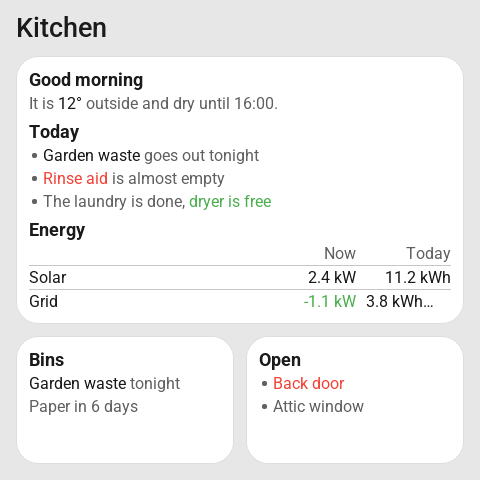
The template tile shows text you write yourself, with Home Assistant templates in it. You write it the way you write a template in Developer tools → Template in Home Assistant. Home Assistant fills in the values, the screen shows the result, and the screen follows every change. When the result is empty, the tile disappears, so a page can stay quiet until something needs you.
Use it for a short briefing in the morning, a list of chores that empties itself, or a few numbers that only make sense together.
On dev now
The template tile is on the dev version of Tessera and comes with the next release. Test what's coming says how to try it now.
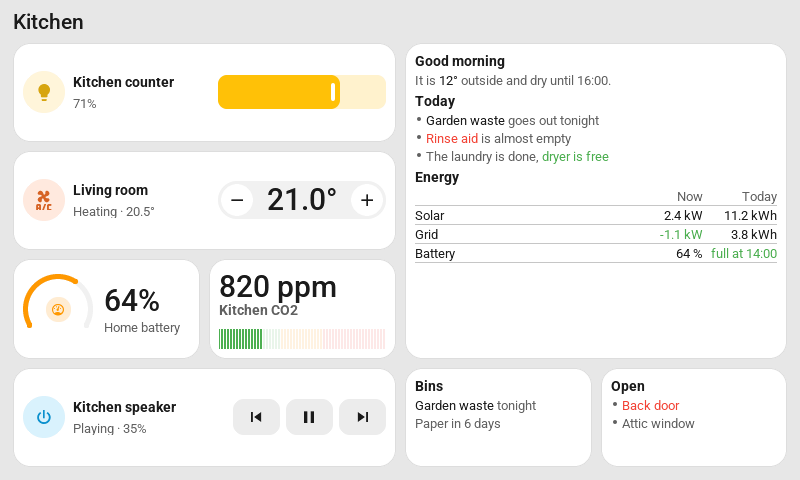
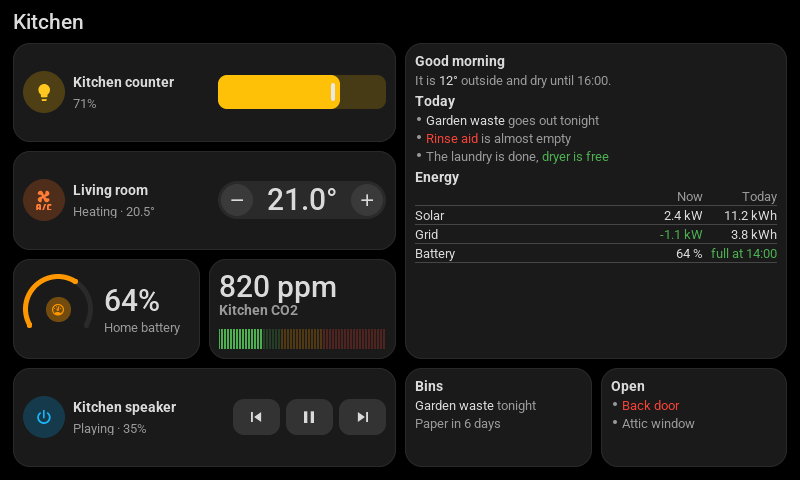
Which screens
Every screen with 8 MB of flash or more. The CYD 2.8 inch and the Hosyond 4 inch have 4 MB and don't offer it. A screen shows at most eight template tiles.
Add it
- Open the screen in Tessera and add Template from the Screen group in the library, at the top of the library. It starts at two by two cells.
- Write your text in the Template field, or start from an example: Lights on, Open doors and windows or Weather. These work in any home.
- Give it a place and a size, then Save & send.
A screen with older firmware can't show the tile yet. The editor says so; press Update on the screen after saving. Updates has the details.
Write the text
Two things mix in the field. Home Assistant's templates fill in what changes. A little markup decides how it looks.
What changes
Everything between {{ }} and {% %} is Home Assistant's own template language. The template documentation of Home Assistant has everything it can do. These are the ones you use most:
| You write | You get |
|---|---|
{{ states('sensor.outside_temperature') }} | The state, such as 12.4 |
{{ states('sensor.power') | float(0) | round(1) }} | A number with one decimal |
{{ state_attr('climate.living_room', 'current_temperature') }} | An attribute |
{{ state_translated('lock.front_door') }} | The state in your language, such as Locked |
{% if is_state('binary_sensor.washer_done', 'on') %} … {% endif %} | A part that only shows while it's true |
{% for light in states.light | selectattr('state', 'eq', 'on') %} | A line for every light that is on |
{{ now().strftime('%H:%M') }} | The time |
How it looks
Outside the braces, each line is one row on the screen.
| You write | The screen shows |
|---|---|
# Kitchen | A heading, in bold |
Plain words | A line in grey. A long line wraps. |
- Empty the dishwasher | A bullet |
**75 %** | That part bright |
:good[Charged] | That part green |
:alert[Rinse aid low] | That part red |
:accent[Tonight] | That part blue |
| Target | 80 % | | A table row, with up to four cells. The first cell names the row; the others line up on the right, as numbers do. |
|---|---| under a row | That row becomes the table's head, in grey |
The keys under the field put each of these in for you. One line can have four parts in different colours. The screen has a fixed set of fonts, so there are no pictures, links or emoji. A character the fonts don't have shows as an empty box. The minus sign, dashes and curly quotes that sensors sometimes write are changed to plain ones for you.
Examples
A list that is only there when something needs doing. When nothing does, the tile disappears:
{% if is_state('sensor.dishwasher', 'done') %}
- Empty the **dishwasher**
{% endif %}
{% if is_state('binary_sensor.rinse_aid_low', 'on') %}
- :alert[Rinse aid] is low
{% endif %}
A small table:
## Energy
| | Now |
|---|---|
| Solar | {{ states('sensor.solar_power') | round(1) }} kW |
| Battery | {{ states('sensor.home_battery') }} % |
The editor helps you
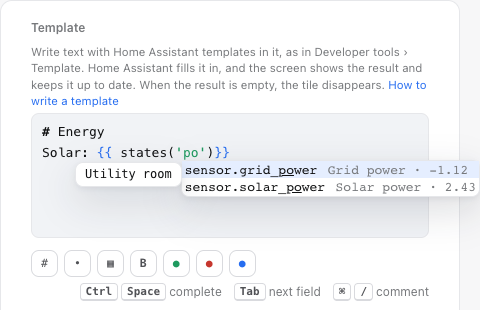
states('.- It completes as you type. After
states(',is_state('orstate_attr('it lists your entities, with their name and value. You can search by name too. Afterstate_attr('climate.living_room', 'it lists that entity's attributes with their values. Afteris_state('lock.front_door', 'it lists the states the entity can have, the one it has now first. - It knows Home Assistant. After
|it lists the filters, after{%the tags such asifandfor, and inside the braces the functions.states.lists your domains, andstates.light.your lights. - Tab fills in the rest. A function, a tag or a table comes with fields. Tab goes to the next field. A function that needs an entity opens the list of entities at once.
- It shows the values. A small label after
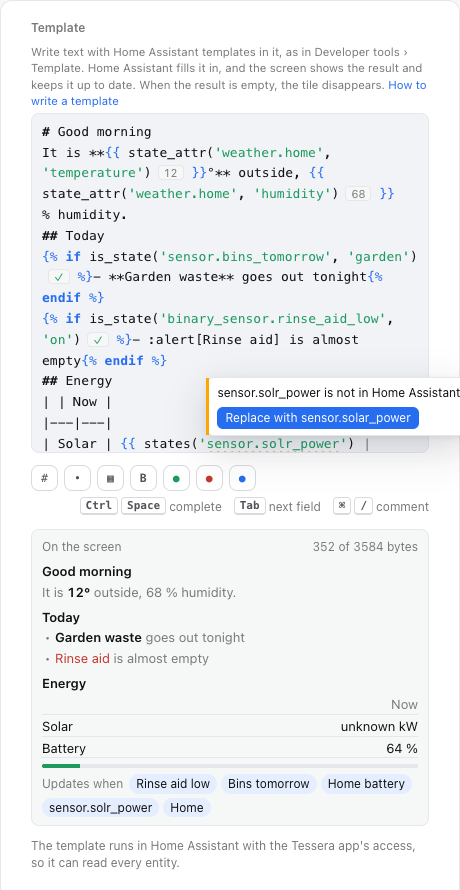
states(…)andstate_attr(…)shows the value now. A ✓ afteris_state(…)says it's true now, and ✗ shows the state it has instead. - It catches typos. An entity that Home Assistant doesn't have gets a wavy line. Point at it to see the entity it most likely meant, and press Replace with to fix it. When Home Assistant names a line in its error, that line is marked.
- It shows the result. On the screen shows the result the way the screen gets it, a moment after you stop typing, with how much of the tile's room it uses. An error shows Home Assistant's own message, on the screen too, until the template works.
- It says when it updates. Updates when names the entities the template reads. The tile updates as soon as one of them changes. A template that reads every state, such as
states | count, updates at most once a minute; name the entities or a domain such asstates.lightto make it follow at once. - Point at an entity to see its name and state. Ctrl+Space shows what fits where the cursor is. Ctrl+/ (⌘/ on a Mac) turns a line into a comment,
{# … #}.
Limits
These are fixed, so you know beforehand what works.
| What | Limit |
|---|---|
| Template tiles on one screen | 8 |
| The template | 4000 characters |
| Rows | 24, or as many as fit the tile |
| The result on an ESP32-S3 screen | 2048 bytes |
| The result on an ESP32-P4 screen | 3584 bytes |
| Cells in a table row | 4 |
Text that doesn't fit the tile ends in "…" on its last line. A tap on the tile does nothing.
Good to know
- The template runs in Home Assistant with the access of the Tessera app. It can read every entity, just like a template in Developer tools.
- While Home Assistant can't be reached, the screen keeps showing what it showed.
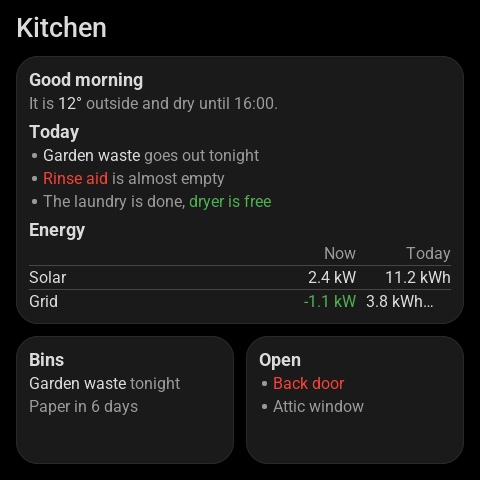
- Pastel background under Icon and color works as on any tile. With None, the text stands straight on the page.