
Your first page
A screen starts empty. You fill it in Tessera, by dragging the things you want onto its page.
Put tiles on the screen
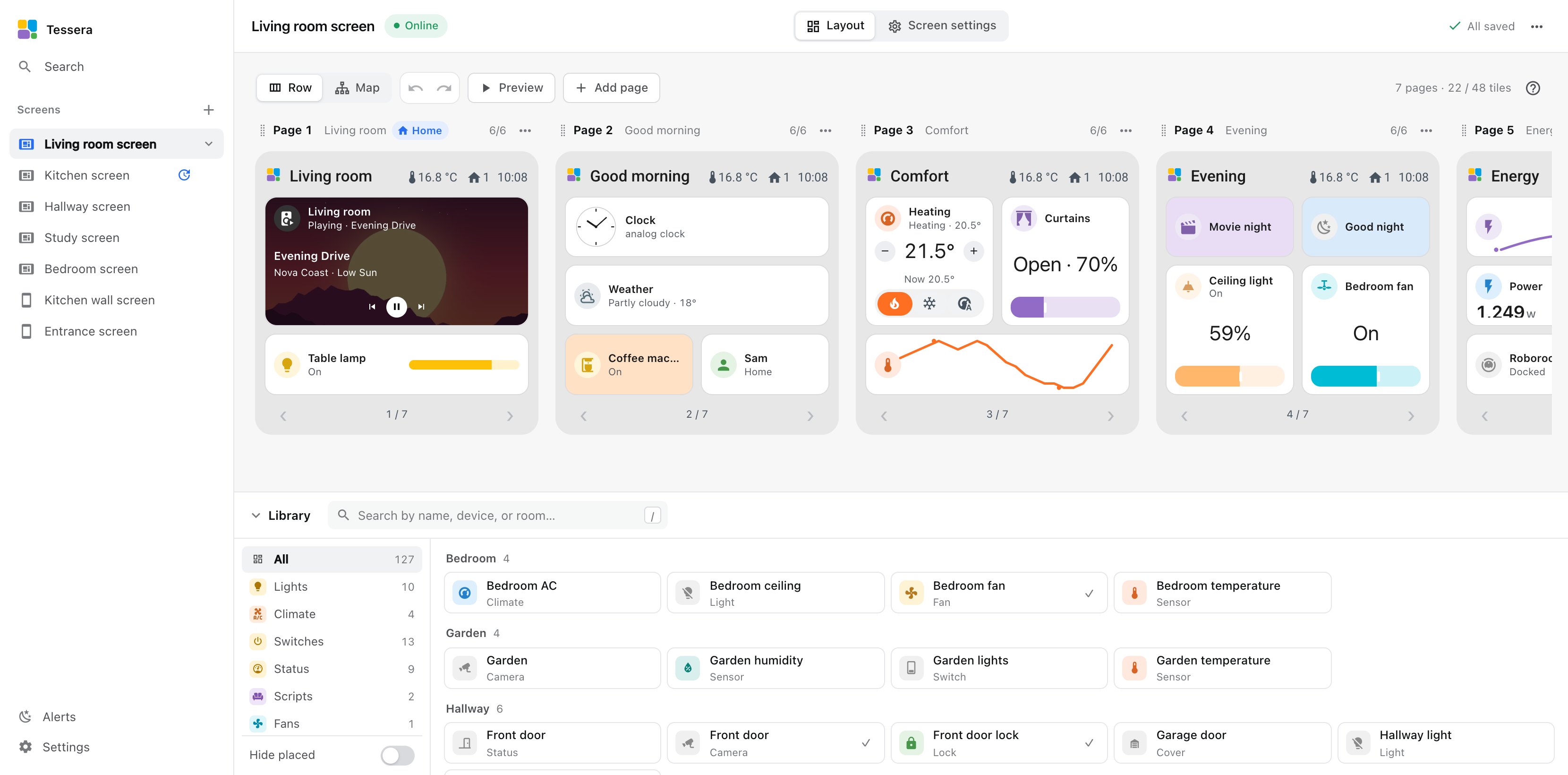
- Click your screen in the Tessera sidebar. The Layout tab shows its pages, as the screen will show them.
- In the Library on the right, search by name, device or room, or use the filters. The built-in Clock is at the top.
- Drag an entity onto a page. Or click an empty cell, then click an entity.
- Click a tile to change it: its name, what a tap does (On tap), its Size and its Display.
- Click Save & send.
You see "Saved · sent to screen", and within seconds the tiles are on the screen. To change them later, do the same again. You never reinstall a screen for its tiles.
Good to know
- The preview is real. It shows the real values from Home Assistant, drawn by the same code as the screen.
- Sizes. A tile is Normal (one cell), Double-width, 1 × 2, 2 × 2 or Full page. You can also drag a tile's edge. Tiles has the details.
- Pages. A screen holds up to eight pages and 64 tiles. Add page in the toolbar above the pages adds one. Pages explains how people get from one page to the next.
- A tile says unavailable? The entity was renamed or removed in Home Assistant. Choose it again.
What a tap does
| Tile | Tap |
|---|---|
| Light, switch, fan | Turns it on or off |
| Climate, vacuum, cover | Opens its control card |
| Alarm panel | Opens its card, with a keypad when a code is needed |
| Select | Opens a list of its options |
| Scene, script, button | Runs or presses it |
| Media player | Opens the media card with keys and volume |
| Camera | Shows the picture full screen |
| Sensor, person, binary sensor | Opens its history: 1 hour, 24 hours or 1 week |
| Go to page | Opens that page |
Hold any tile to open its full card: for a light its brightness and colour, for a fan its speed. You can change what a tap does under On tap; Perform action runs any action Home Assistant offers for that entity.
Does your screen work?
A day after a new screen first comes online, its page in Tessera asks once: Does your screen work as you expect? Answering is optional and helps improve support for your board. What is shared? on the card lists exactly what is sent. You can change or delete your answer later under Screen settings → Feedback.