
The editor
Tessera, the page in the Home Assistant sidebar, is where you arrange your screens. The sidebar lists your screens; a screen opens with two tabs, Layout and Screen settings.
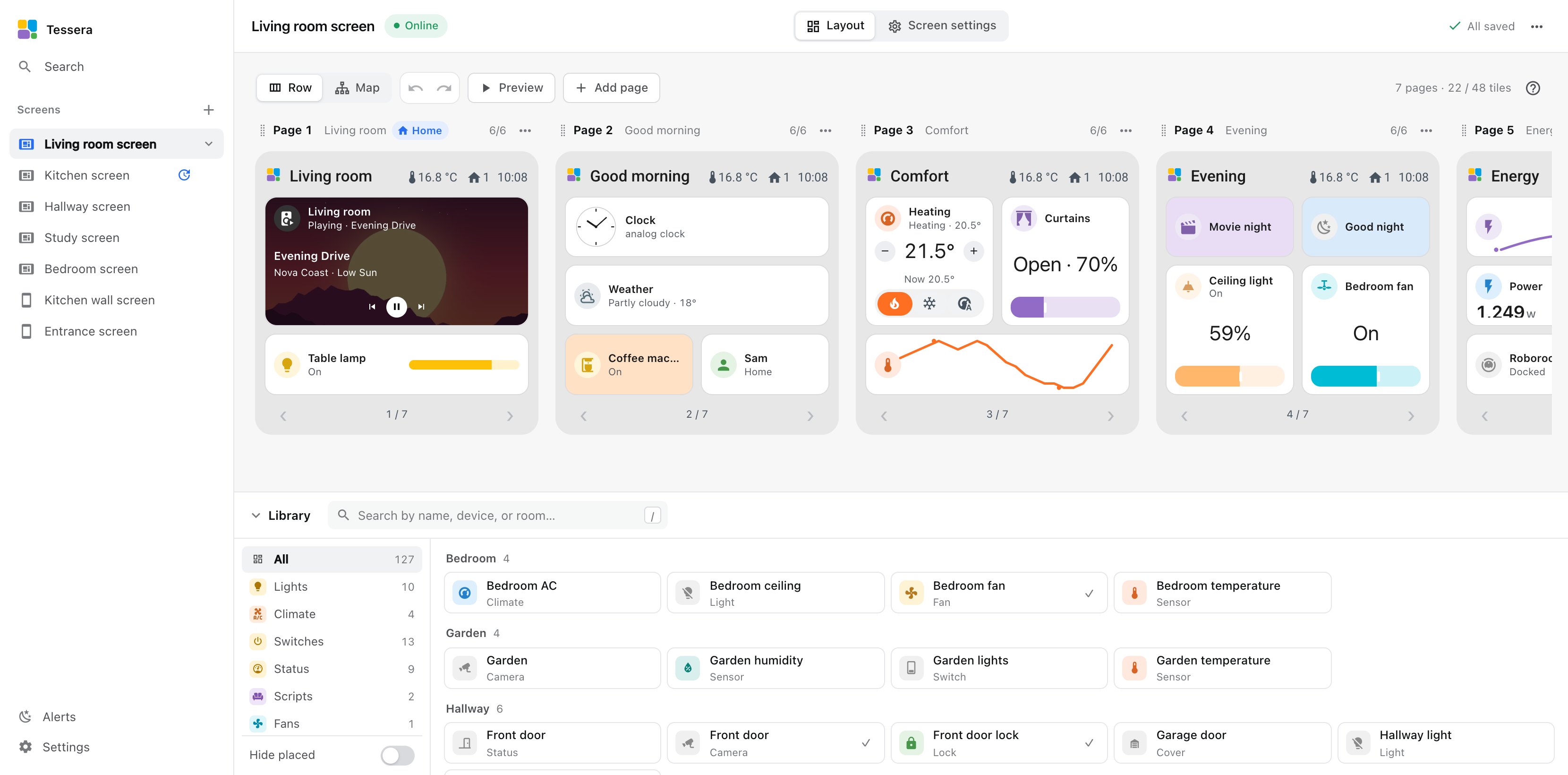
Layout
The pages of the screen stand side by side, drawn as the screen draws them, with the real values from Home Assistant. The Library along the bottom holds everything in your home: search by name, device or room, or narrow it with the kind chips and the room filter. Hide placed leaves out what is already on this screen.
- Add a tile by dragging an entity onto a cell, or click an empty cell and then an entity. Dropping on the empty page after the last one starts a new page.
- Move a tile by dragging it. Drop it on another tile and the two swap. Arrow keys move a selected tile.
- Resize with the handles on the right and bottom edge.
- Remove with the tile's ··· menu. Undo in the message brings it back.
- Undo and Redo in the toolbar step through every change.
Nothing reaches the screen until you click Save & send. Then you see "Saved · sent to screen", and the screen shows the new pages within seconds. A screen that is offline gets them when it is back. If someone else saved the same screen in between, the editor says so and lets you load their version or keep yours.
The screen's menu
The ··· next to the screen's name:
- Identify blinks the screen, so you know which one it is.
- Read current data shows what Home Assistant reports for every tile, and how each tile is set.
- Copy layout from… another screen, Export layout and Import layout… as a file.
- Rename changes the name in the app.
- Override YAML is for people who build their own firmware changes; see Flash a screen yourself.
- Update firmware builds and installs the screen's firmware over Wi-Fi; see Updates.
- Remove screen takes the screen out of the app and out of Home Assistant; see Manage your screens.
Preview
Preview above the pages opens the screen as it will behave: tap, hold and swipe as on the glass. It is the screen's own firmware, running in your browser, drawn from the layout you are editing. Nothing is saved from it. Taps control devices sends the taps to Home Assistant for real; off, it only moves through the pages.
Settings
Settings in the sidebar holds what applies to every screen: Language & region (Clock, language and formats), Firmware updates (Updates) and Alerts (Alerts from automations).
On a phone
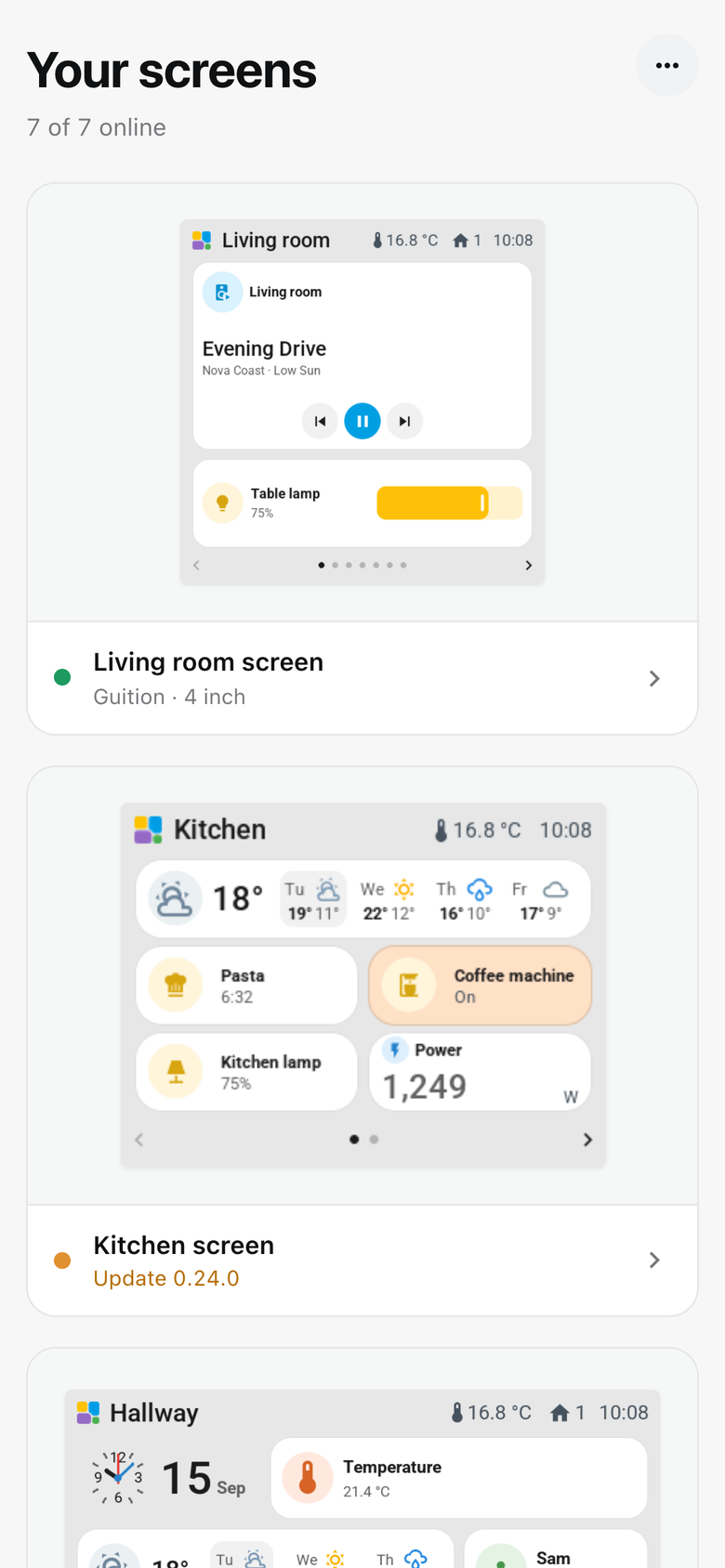
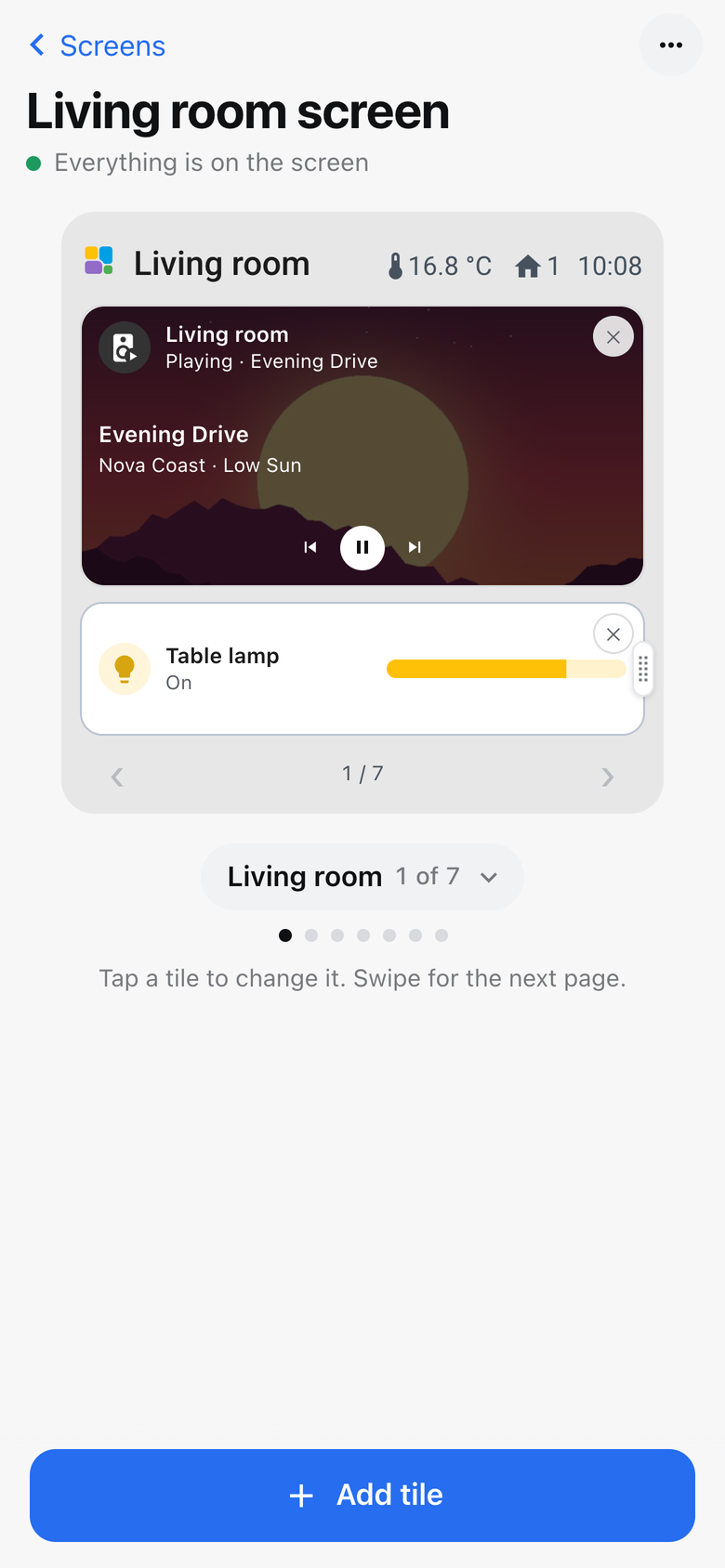
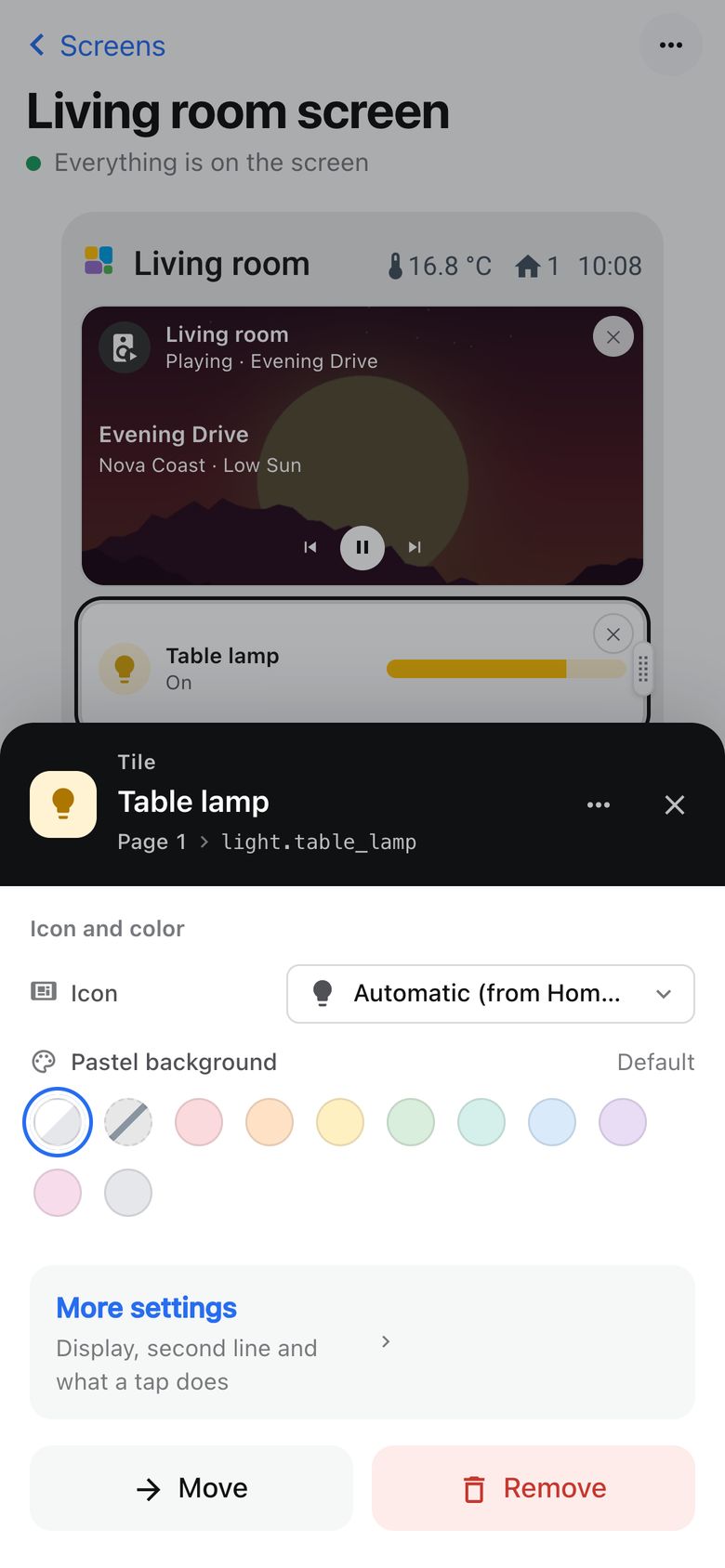
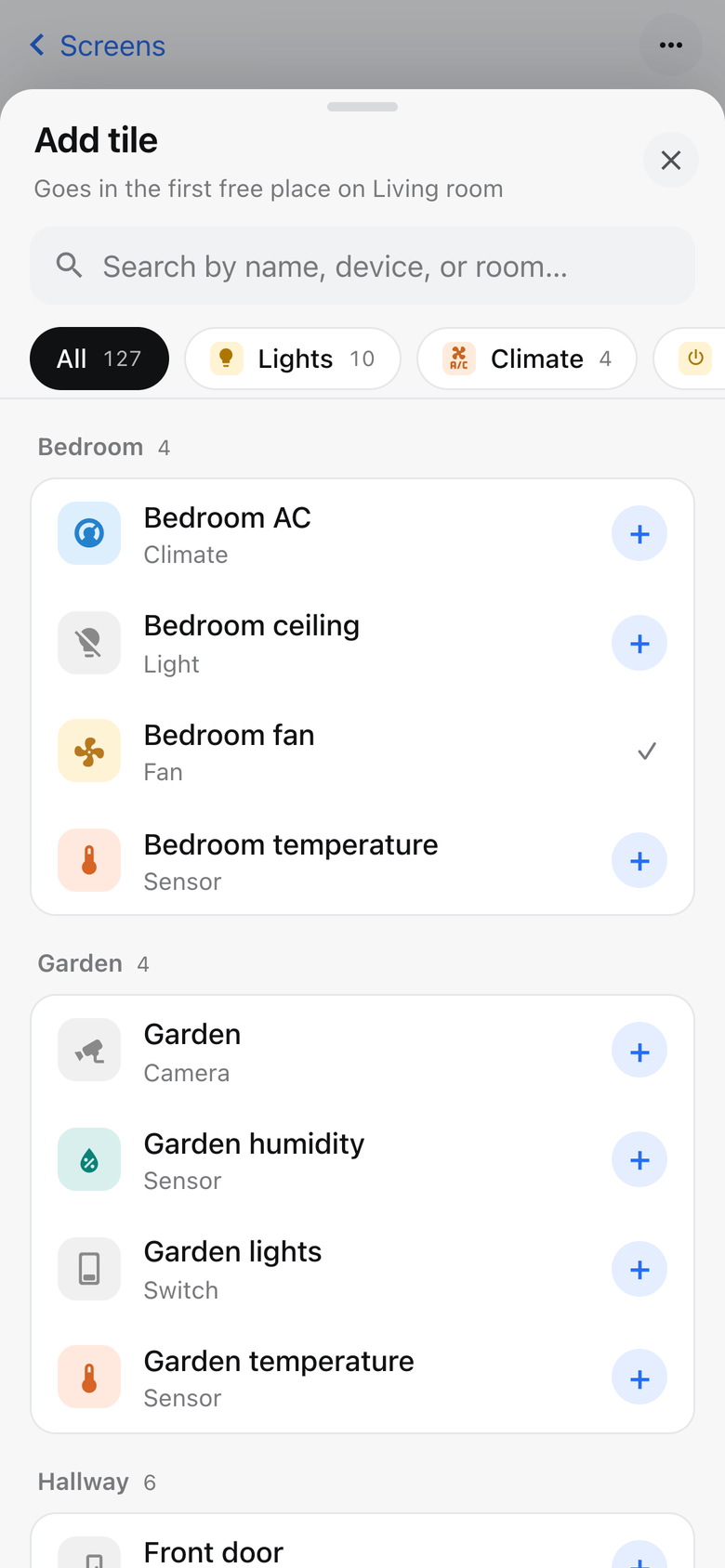
On a phone the editor shows the screen itself, one page at a time. Swipe for the next page; the page name under the screen opens the list of pages. Add tile opens a sheet with the search and the kinds, and says where the tile will go. A tap on a tile gives its name, icon and colour, with Move and Remove, and More settings for the rest. Full editor switches to the desktop editor; Simple view goes back.
Keyboard
⌘K or Ctrl+K opens a search over screens, entities and actions, and adds an entity to the open screen. A selected tile moves with the arrow keys and opens with Enter; a selected handle resizes with the arrows.