
Energy
The energy card shows the power of your house right now, the way the live Energy view in Home Assistant shows it: where the power comes from, where it goes, and which devices use the most. It works on every screen, the CYD included, and needs firmware 0.47.0 or newer.
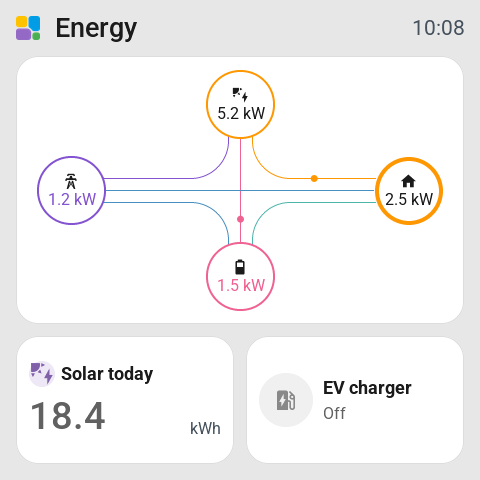
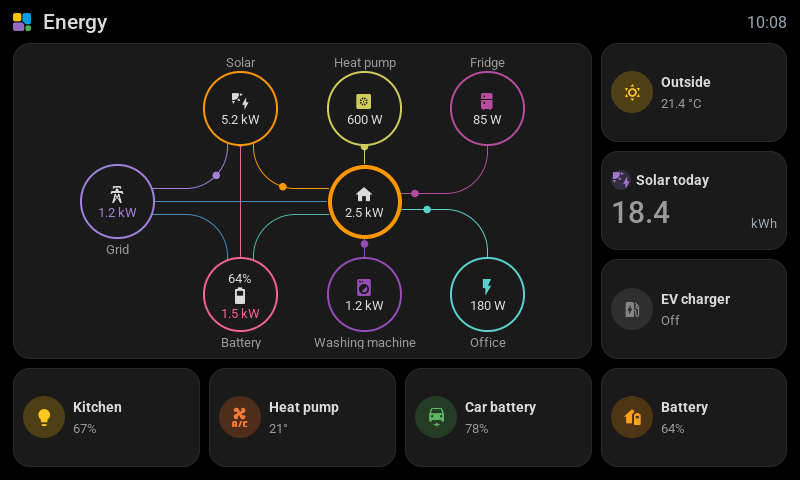
What it shows
- Solar, the grid and the battery, each a circle with its power. The grid shows what comes in and what goes back, the battery what it gives and what it takes, with its charge in percent.
- The house in the middle. Its ring is coloured by where its power comes from right now.
- A line for every flow, with dots that run along it. The more power flows, the faster the dots run.
- Up to four devices that draw power. When there are more, the biggest keep a place, in the order of your Energy settings, and the smallest share the last place as Other. What no device measures stays in the house's own number.
The colours are Home Assistant's energy colours, in light and in dark mode. Numbers are written in the screen's own number format. A device has the name and the icon it has in Home Assistant's Energy view, and the house is called after your home's name in Home Assistant.
A house without solar or a battery shows only the circles it has.
Add it
- Open the screen in Tessera and add Energy from the Screen group in the library.
- Give it a place and a size, then Save & send.
- On a screen with firmware older than 0.47.0, the editor says so. Press Update on the screen after saving; Updates has the details.
There is nothing to set up on the card itself. Everything comes from Home Assistant.
What Home Assistant needs
The card reads the Energy settings you already have in Home Assistant, under Settings → Dashboards → Energy:
- A power sensor for the grid, your solar panels and your battery, in W or kW. A sensor of energy in kWh is not enough: the card shows power right now.
- The battery's charge, a sensor in percent, for the number in the battery's circle.
- Devices with a power sensor, for the circles around the house.
Add what is missing in those settings, and the card picks it up within five minutes. Tessera reads the Energy settings again every five minutes, and a new value of a sensor shows at once.
Without any power sensor in the Energy settings, the card says No power sensors in Home Assistant's energy settings.
Sizes
The editor only offers sizes the diagram fits.
| Screen | Smallest size |
|---|---|
| Most screens | 2 × 2 |
| CYD 2.8 inch, lying down | Full page |
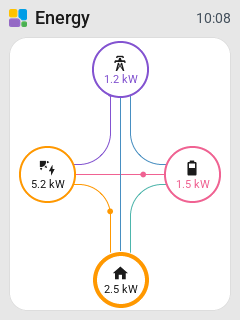
| CYD 2.8 inch, standing up | Three rows high |
| Waveshare 4.3 inch | Two cells wide, three rows high |
The card uses the screen's own fonts. A bigger card gets the names under the circles and arrows beside the numbers, and room for more devices. On a screen standing up, the diagram turns upright.
Tap
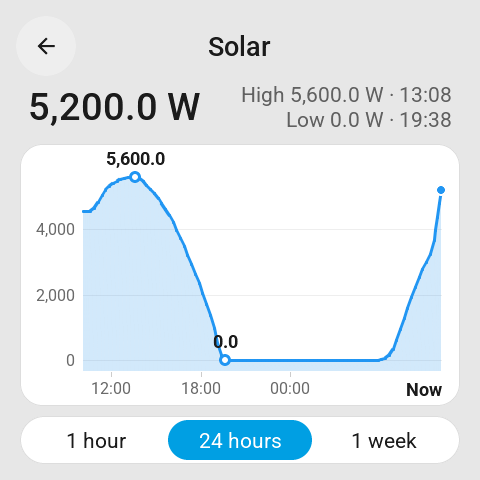
A tap on a circle with a sensor behind it, solar, the grid, the battery or a device, opens that sensor's history card, with 1 hour, 24 hours and 1 week. The house and Other have no sensor of their own, so a tap on them does nothing. Neither does a tap on a source with more than one sensor, such as two solar arrays.