
Lights, switches and fans
The tiles people tap most. A tap switches, a hold opens the controls.
Lights
On the tile: the icon, the name and the brightness. A lamp that is on takes its own colour; one with a running effect names it.
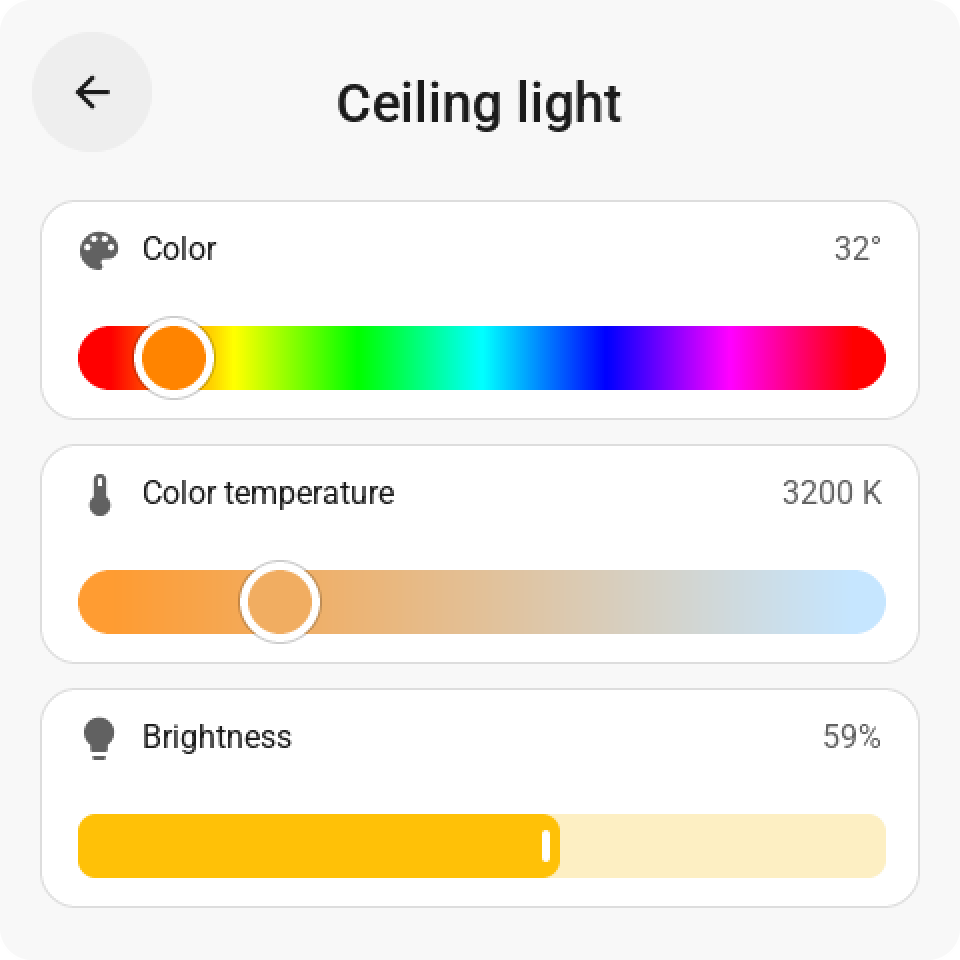
Tap switches the light. Hold opens its card: a Brightness slider, and Color and Color temperature sliders as far as the lamp has them. A lamp that only switches shows its icon on a round field, with the power key doing the work.
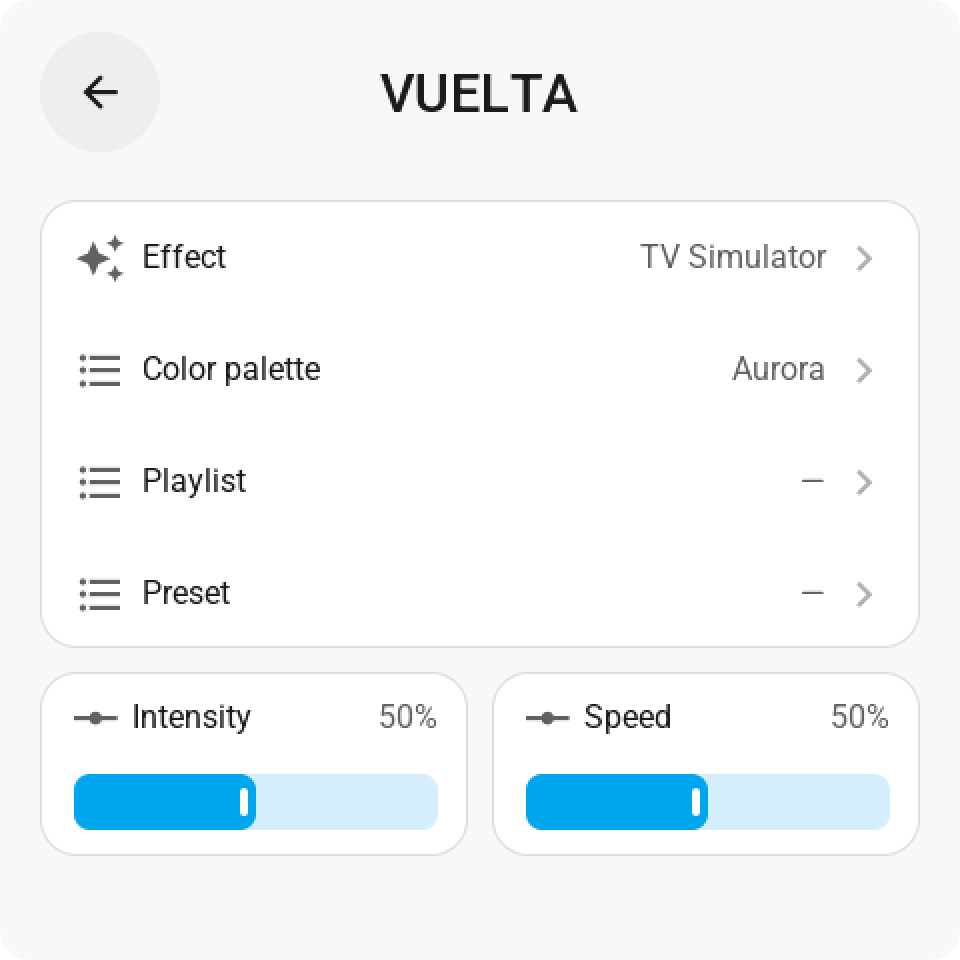
A light with effects, such as WLED, has a sparkles key on its card. It opens a page with the effect, the palette and the preset in rows, and a slider for the speed and the intensity. A light group has a lamps key that opens a card per lamp.
On a bigger tile you can put the controls on the tile itself: On/off switch or Brightness slider. Small slider on the tile puts a thin brightness slider in any tile.
Switches
On the tile: the icon, the name, On or Off, amber when on. Helper toggles (input booleans) work the same.
Tap switches it. Hold opens its history: a timeline of when it was on, over an hour, a day or a week, with the switch at the top of the card.
On a bigger tile: On/off switch.
Fans
On the tile: the icon, the name and the speed in percent.
Tap switches the fan. Hold opens its card with a standing speed slider, for a fan that has speeds.
On a bigger tile: On/off switch or Speed slider. Small slider on the tile puts the speed in the tile.
Automations
An automation shows as a robot: amber while it is on, grey and crossed out while it is off.
Tap switches the automation on or off. Hold runs its actions, skipping its conditions. Run automation actions under On tap swaps the two: the tile then works like a script's button, amber while it runs.