
On the screen
What the screen does under your finger, and what it tells you.
Tap and hold
A tap does the obvious thing for the tile: a light switches, a scene runs, a thermostat opens its card. Your first page has the full table, and every tile can be changed under On tap in the editor.
Hold a tile and its card opens: brightness and colour for a light, the speed for a fan, the history for a switch or a sensor.
The tile shows the new state at once. Home Assistant confirms it a moment later; if it refuses, the tile says Refused and goes back. A spinner appears only when Home Assistant takes longer than about half a second.
A greyed tile that says Unavailable belongs to an entity Home Assistant can't reach, or one that was renamed. It does nothing until the entity is back, or until you choose it again in the editor.
Cards
A card opens over the page, with a round back key in the top left. Its controls are never wider than a hand and stand in the middle of the glass; pictures and graphs fill it. A card closes with the back key, when the screen goes into standby, and when Back to Home kicks in.
From page to page
- The page bar under the tiles: a chevron in each half and a dot per page. Tap the left or right half. It only shows when the screen has more than one page.
- Swipe, when Swipe between pages is on. On most screens you swipe in from the left or right edge, like going back on a phone. On the CYD and the Hosyond a quick swipe anywhere across the tiles turns the page.
- Home: the Tessera logo at the far left of the top bar takes you to the Home page from anywhere. So does a swipe up from the bottom edge.
- Go to page tiles open a page you choose, handy for a page that is not in the page bar.
A page that is hidden from the page bar is a detail page: you reach it through a Go to page tile or an automation, and its page bar says Back.
Standby and waking
After a while without a touch the backlight dims to the standby brightness; at night to the night brightness. The tiles stay on the glass, or a screensaver takes their place. The first touch only wakes the screen; it does not switch anything. The one exception is a page that is a single full-page switch, which switches on the wake tap, like a wall switch in the dark.
Brightness and standby has the times and levels.
The settings page on the screen
The screen has its own settings page, so nobody needs a laptop to turn the brightness down. Open it in one of three ways:
- Swipe down from the top edge.
- Hold the top bar for about a second and a half. A blue line grows along the top edge while you hold; let go early and nothing happens.
- Tap a Settings tile, if you put one on a page.
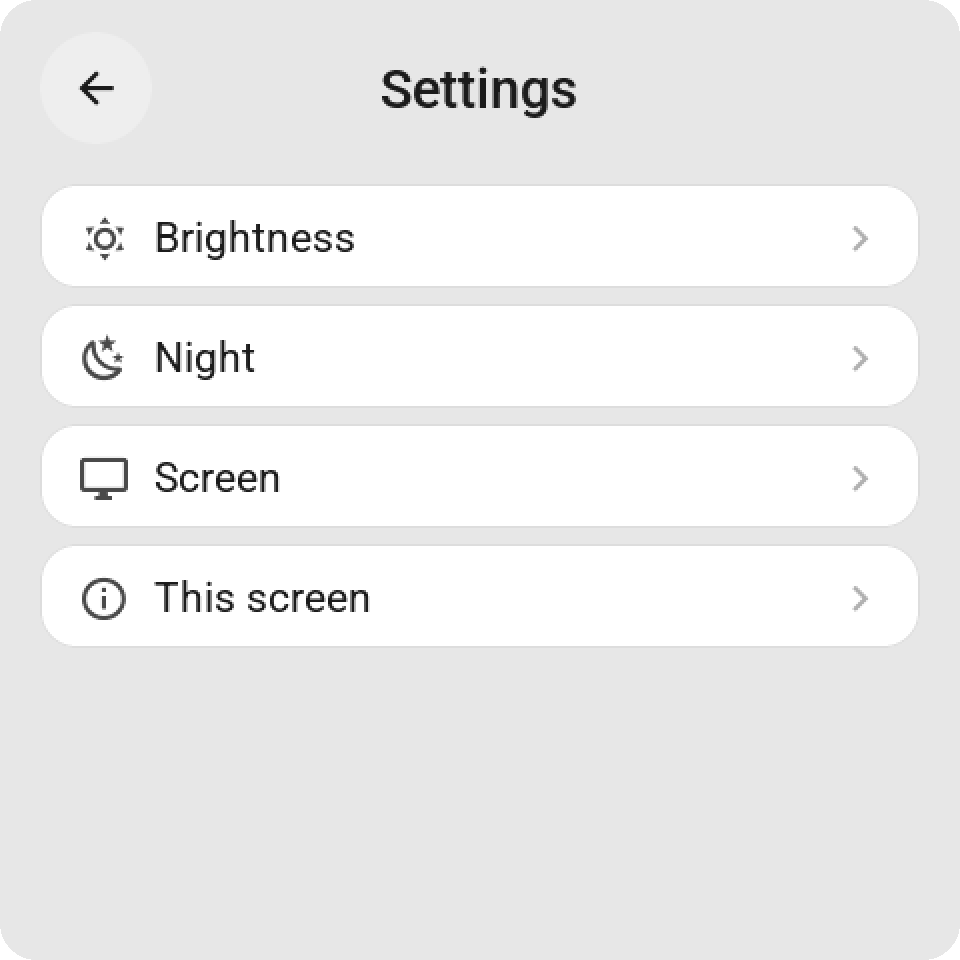
The page has four groups. Brightness and Night hold the backlight and standby settings, Screen the navigation settings, and This screen shows the screen's name, address, firmware and whether Home Assistant is connected, with Calibrate touch (on a screen that has it) and Restart. Both ask for a second tap.
A switch flips when you tap its row. A number has round − and + keys that repeat while you hold them and take bigger steps after a second. A greyed row depends on a switch above it that is off. A change applies at once and shows up in Tessera and in Home Assistant within a second.
Screen settings explains every row.
What the screen tells you
| On the screen | What it means |
|---|---|
| Connecting to Home Assistant | The screen is on Wi-Fi and waiting for Home Assistant. |
| Choose tiles in HA | The screen is paired, but has no tiles yet. Give it some in Tessera. |
| Preparing pages 3/8 | The screen builds its pages after starting. A second or two. |
| HA not connected | The connection to Home Assistant dropped. Taps are blocked until it's back. |
| Tessera not active | The app hasn't sent anything for about five minutes. Check that it is running. |
| Configuration problem. Update add-on. | The screen's firmware is newer than the app. Update the app. |
You can save tiles while a screen is offline. The app sends them as soon as the screen is back.