 tessera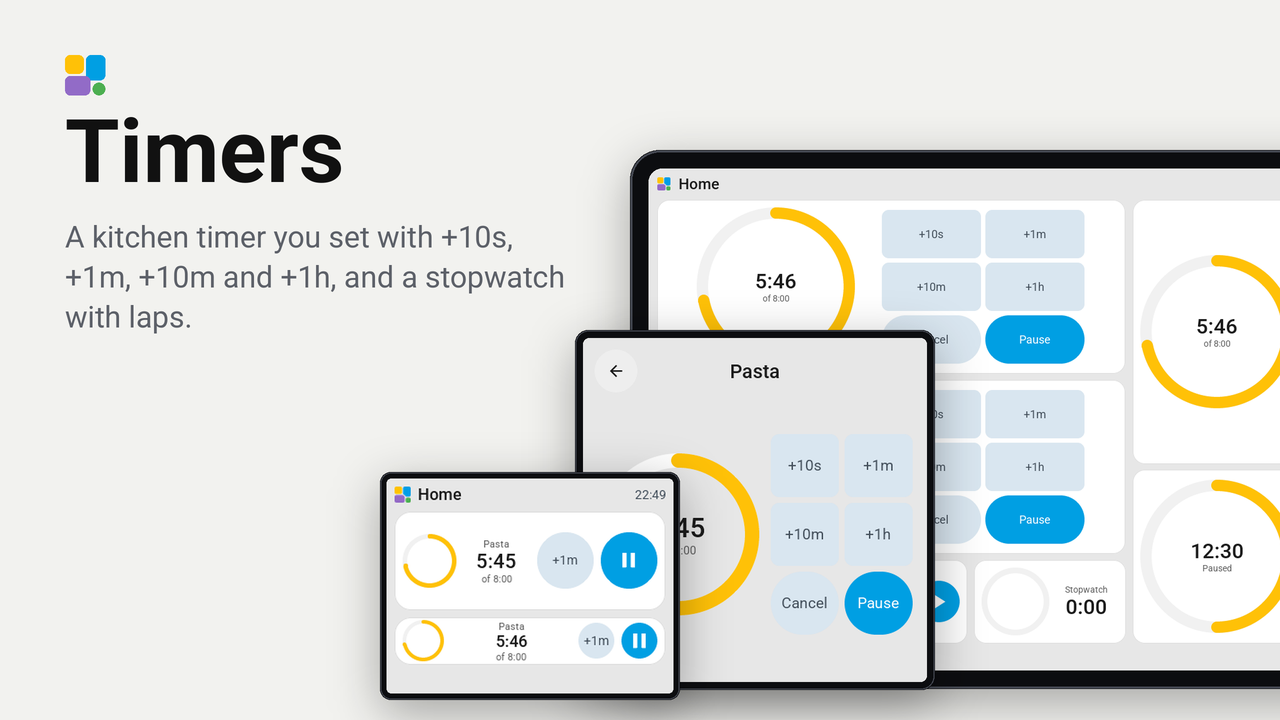
Timers
A kitchen timer you set with +10s, +1m, +10m and +1h, and a stopwatch with laps.
A kitchen timer and a stopwatch on a Tessera screen. You set the timer with four keys that add time, +10s, +1m, +10m and +1h, and start it: no dial to turn, no numbers to type. A ring shows how much is left, and when the time is up its ring and time turn red and it says Done.
The timer runs on the screen itself, or as a timer helper of Home Assistant, so the same timer shows on your phone and in your automations. The stopwatch runs on the screen and keeps the last three laps. Both keep running through a restart of the screen.
Set up
- In Tessera, open Plugins and choose Timers, or choose Add with a link and paste
https://github.com/Heronimonimo/tessera-timers. - Tick the screen in the kitchen and apply. The screen builds once.
- In Layout, place the Timer or the Stopwatch tile from the library's Plugins group, at any size from 1x1 to 3x3.
- Only for a timer you want in Home Assistant too: make a timer helper first (Settings, Devices & services, Helpers, Create helper, Timer), then choose it as the Timer tile's entity in the inspector. Leave the entity empty for a timer that runs on the screen alone.
What it shows
- 1x1: the ring and the time. A tap opens the full-screen card with every key.
- 2x1: the ring, the time, +1m and Start or Pause. A tap on the time opens the card.
- 1x2: the ring, +1m and +10m, and the two keys that act.
- 2x2 and up, and the card: the ring beside all four add keys, with Reset or Cancel and Start or Pause.
The timer:
- Setting it: tap the add keys until the time is right (2 x +1m and 3 x +10s is 2:30), then Start. Reset sets it back to 0:00.
- While it runs: the add keys add time to it; Pause and Resume, or Cancel.
- When it is done: its ring and time turn red and it says Done. On a screen with a speaker it rings too: three beeps every two seconds for a minute, or until you tap Stop. +1m gives it another minute, Stop ends it. A timer on the screen opens its card when it is done, on whatever page shows; turn that off with the setting below.
The stopwatch: Start, Pause and Resume; Lap while it runs, Reset while it is paused. The tile shows the newest lap, the larger tiles and the card the last three.

The card on the Guition 4-inch and the CYD, drawn by the real firmware on Tessera's preview bench:


Every tile at every size on the four screens of the bench: renders/overview.png.

In the top bar
In Layout, open a page's top bar and add Running timer or Running stopwatch from the plugins. They show only while a timer or a stopwatch runs, in whole minutes ("6 min", "1 h 05"): the top bar looks again every five seconds, so the tile and the card keep the seconds. A timer that is done shows a red bell and Done. With several timers the bar shows the one that ends first, with several stopwatches the one that runs longest.
Settings
On a screen with a speaker (from its board, such as the reTerminal D1001, or from another plugin) the plugin's details also have the part Ring when a timer is done, on by default, and the setting Timer sound: a switch that turns the beeps off and on again without a build, also on the screen's settings page and in Home Assistant. The beeps follow the screen's volume.
On the screen's Plugins tab, the plugin's details, Settings:
- Open the timer when it is done: a timer on the screen opens its card when the time is up (on by default).
Home Assistant also gets a Timer done binary sensor of the screen: on while a timer of the screen is done. Use it to send a notification to your phone.
Good to know
- A timer on the screen and the stopwatch belong to their tile's place in the layout: moving a tile to another place starts it fresh.
- A timer helper is run by Home Assistant. Adding time to it while it runs starts it again with the new time, so its
ring starts full again. Home Assistant's own
timer.finishedevent fires as always. - The screen counts on its own clock, which Home Assistant sets: until it is set (right after a start) a timer on the screen waits.
- Tried on a real screen, the M5Stack Tab5, and on the preview bench on the CYD, the Guition 4-inch, the Waveshare 4.3-inch standing up and the Guition 10.1-inch, light and dark.