 tessera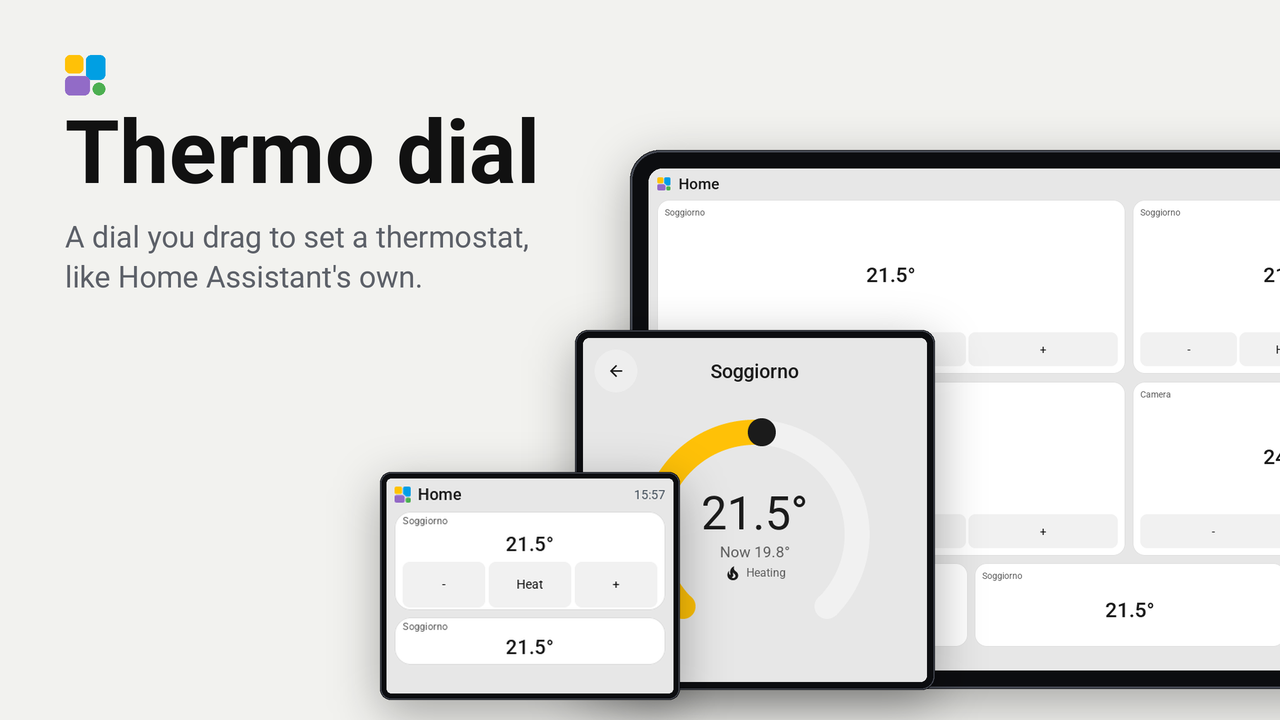
Thermo dial
A dial you drag to set a thermostat, like Home Assistant's own.
No rating yetRatings come from people who run it, in the Tessera app
0people like it, some without running it
0homes use it, of those who share that
A tile for a climate entity with the target large, and keys to step it and change its mode. A tap on the tile opens a card with a dial you drag, like Home Assistant's thermostat card.
Set up
- In Tessera, open Plugins, choose Thermo dial and tick your screens. Each screen builds once.
- In Layout, place the Thermo dial tile from 1x2 up (the keys sit at the bottom).
- Choose the
climate.*entity in the tile's inspector. - Make sure the screen may perform Home Assistant actions. Tessera turns this on for a screen it added to Home Assistant; for a screen added by hand, tick Allow the device to perform Home Assistant actions in the ESPHome integration's options for that device.
What it shows
- The tile: the name, the target as a number in the middle, and the keys - , mode and + below. The mode key shows only when the entity offers two modes or more.
- A tap on the tile, anywhere but a key, opens the card: the dial with the target large in the middle, "Now 19.8°" and what the thermostat is doing under it. The ring is amber while heating, blue while cooling and grey when idle or off.
Good to know
- Dragging the dial changes the number only; Home Assistant gets one
climate.set_temperaturewhen you let go. The- and + keys send one after 600 ms without another tap.
- If Home Assistant does not report the new target within 5 seconds, the number goes back to the real one.
- Range and step come from the entity (
min_temp,max_temp,target_temp_step). - An unavailable thermostat shows a dash, and its keys and dial do nothing.
Boards
Tried on a real screen: the Waveshare ESP32-S3-Touch-LCD-7B (7 inch, 1024x600), with a real climate entity: the
keys, the card and dragging its dial. Drawn by the plugin bench on the CYD, a 4-inch Guition, a 4.3-inch Waveshare and a
10-inch Guition P4, light and dark.