 tessera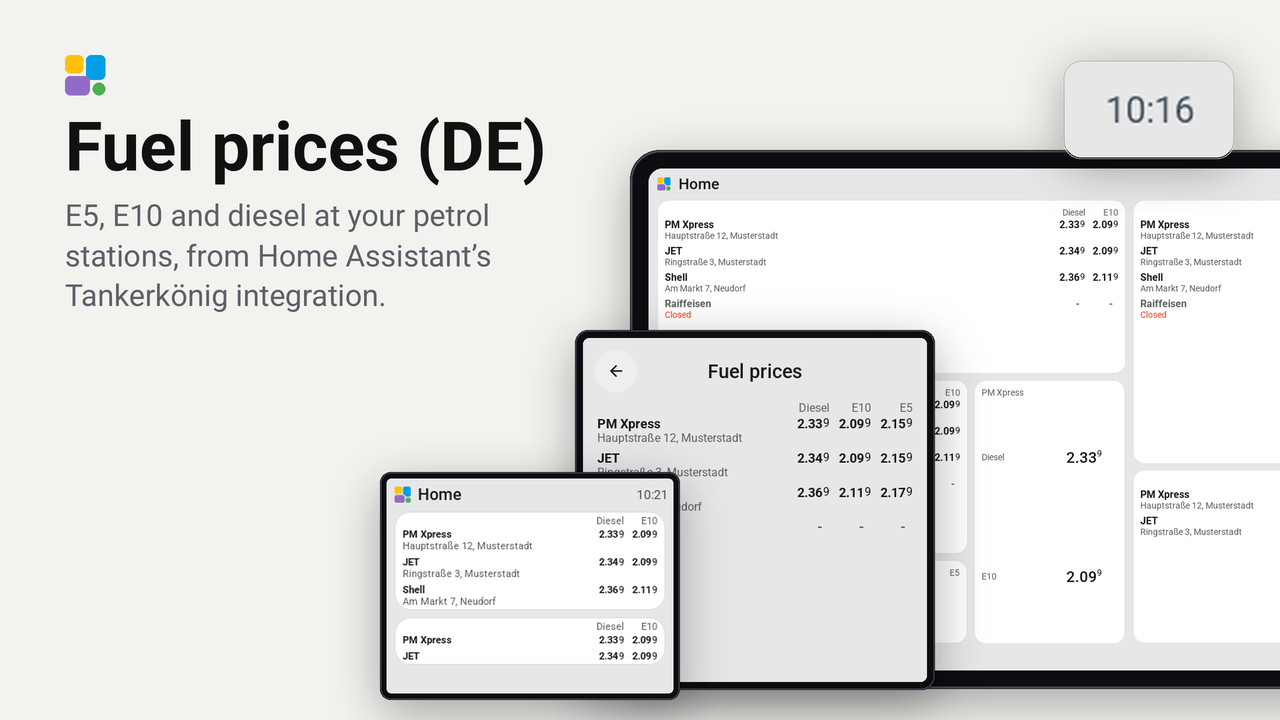
Fuel prices (DE)
E5, E10 and diesel at your petrol stations, from Home Assistant’s Tankerkönig integration.
A tile with the prices for diesel, Super E10 and Super E5 at your petrol stations, from Home Assistant's Tankerkönig integration. It is the idea of the Lovelace Tankerkönig card, drawn on a Tessera screen.
The plugin asks no internet service itself: the integration already fetches the prices. One template sensor gathers the stations you choose into lists, and the tile draws them.
Which stations, and in which order, you set in the template sensor: one station or up to ten.
What the tile shows you set per tile, in the editor's inspector:
- Diesel, Super E10, Super E5: each price on or off.
- Sort by: the order of the sensor, or the cheapest first for one fuel.
- Only the cheapest: just the cheapest one, two, three ... stations for that fuel.
- Hide closed stations, Show the address, Show open or closed, Show price changes (a price that went up turns red, one that went down green, until the next change).
On one column the tile shows the first station (the cheapest, when it sorts) with its price large. From two columns on it is a list: a header with the fuels, and a row per station with its name, its address and a price per fuel, the tenth of a cent small, as the price boards at the road write it.
Set up
- Set up the Tankerkönig integration in Home Assistant, with the stations you want, if you have not yet.
- Copy
home_assistant/fuel_prices_template.yamlinto yourconfiguration.yaml(or a file it includes) and put the device ids of your stations understations:. The file's comments say where to find them; a Tankerkönig card on a dashboard has the same ids under itsstations:. Restart Home Assistant once. Developer tools, States, then showssensor.fuel_prices_for_screenswith the listsstation_names,station_places,station_open,diesel,e10ande5. - In Tessera, open Plugins, Add with a link, and paste the link of this repository. Add the plugin to a screen; the screen builds.
- In Layout, place the Fuel prices tile from the library's Plugins group, and choose the sensor in its inspector (only sensors with these lists are offered).
- Choose the fuels, the sorting and the rest. The tile follows at once.
To change the stations later, edit the list in the template sensor and reload it (Developer tools, YAML, Template entities): no new build of the screen.
Station in front
Station in front in the inspector takes a part of a station's name or address (JET, Burger). That station
comes first: a tile of one cell shows it, a list has it on top, and the others follow sorted as set. Empty leaves the
order as it is.
Card, one cell and top bar
- A tap on the tile opens a card with every station of the sensor: every fuel, its address, open or closed.
- A tile of one cell with two or three fuels chosen shows the station's name and a row per fuel; with one fuel, that price large. An arrow beside a price says how it last changed: up in red, down in green.
- The top bar item Cheap fuel (Top bar, Add, From plugins) says "Diesel 1,759 · JET" while the cheapest price of a fuel is at a limit or under. Choose the template sensor under When building in the plugin's details; then on the screen (hold the top bar, Settings, Plugins) or in the plugin's details: Cheap fuel in the top bar on, the Fuel, and the Price limit in cents (180 for 1,80 €).
Good to know
- The tile shows a new price as soon as the integration has it (by default every 30 minutes in Home Assistant).
- A station that is closed keeps its last prices, muted. "No prices" means the station reports none right now.
- A price of 0 in the sensor means "none": the station does not sell that fuel, or has no price for it now.
Privacy
The plugin talks to no service. Its data comes from Home Assistant, from the Tankerkönig integration you set up there. Tankerkönig publishes the data of the German market transparency office for fuels (MTS-K) under CC BY 4.0.