 tessera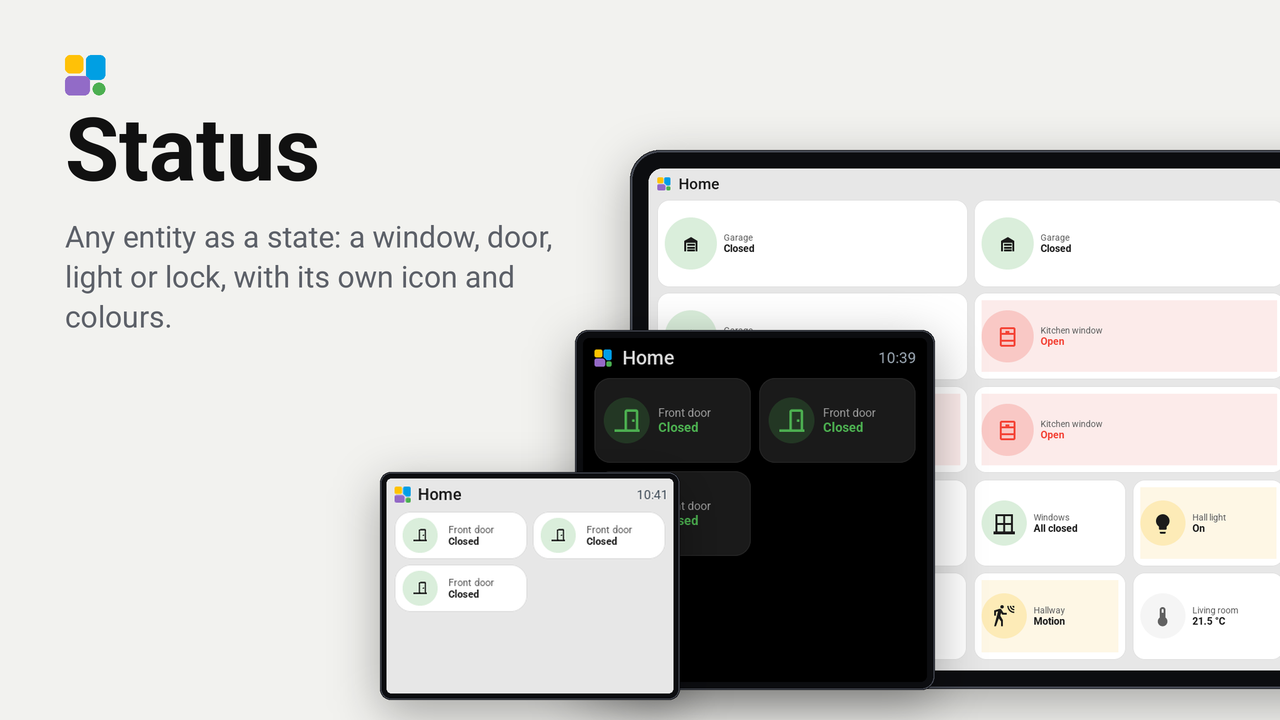
Status
Any entity as a state: a window, door, light or lock, with its own icon and colours.
No rating yetRatings come from people who run it, in the Tessera app
0people like it, some without running it
0homes use it, of those who share that
Any Home Assistant entity as a state on a tile: a window, a door, a light, a lock, motion, a leak. The icon changes with the state (an open or closed window, a light on or off), and so does the colour: an open window red, a closed one green, a light that is on yellow. Use the tile as often as you like, each with its own entity, on any size from 1 x 1 to 4 x 2: square, the circle above and the words under it; wide, the circle beside them.
Everything is set on the tile itself, in the layout's inspector, without a build:
- Entity: a binary sensor, sensor, switch, light, input boolean, lock, cover or fan. A group works too, such as
binary_sensor.group_windows, which is on while any window is open. - What it is: window, door, garage door, gate, blinds, light, plug, motion, presence, lock, leak, smoke, appliance, alarm, switch, temperature or humidity. Its icons and words. Auto takes it from the entity's device class.
- Colour when on and Colour when off: red, orange, yellow, green, blue, purple, the accent, or grey for none. Auto takes the kind's.
- Word when on and Word when off: your own, such as "All closed"; empty takes the kind's.
- Tint the tile: the whole tile takes the colour lightly while the entity is on.
- Show the name, and Switch on a tap for a light, a switch or a cover.
A sensor with a number shows it with its unit.
Set up
- In Tessera, open Plugins, Add with a link, and paste the link of this repository. Add the plugin to a screen and build it once.
- In Layout, place a Status tile, choose its entity in the inspector and set what it is and its colours. Place as many as you like.
- For Switch on a tap, the screen must be allowed to perform actions (Home Assistant, the ESPHome device's options).
Good to know
- One entity per tile. For several windows at once, make a group in Home Assistant (Settings, Helpers, Group) and choose the group.