 tessera
Select buttons
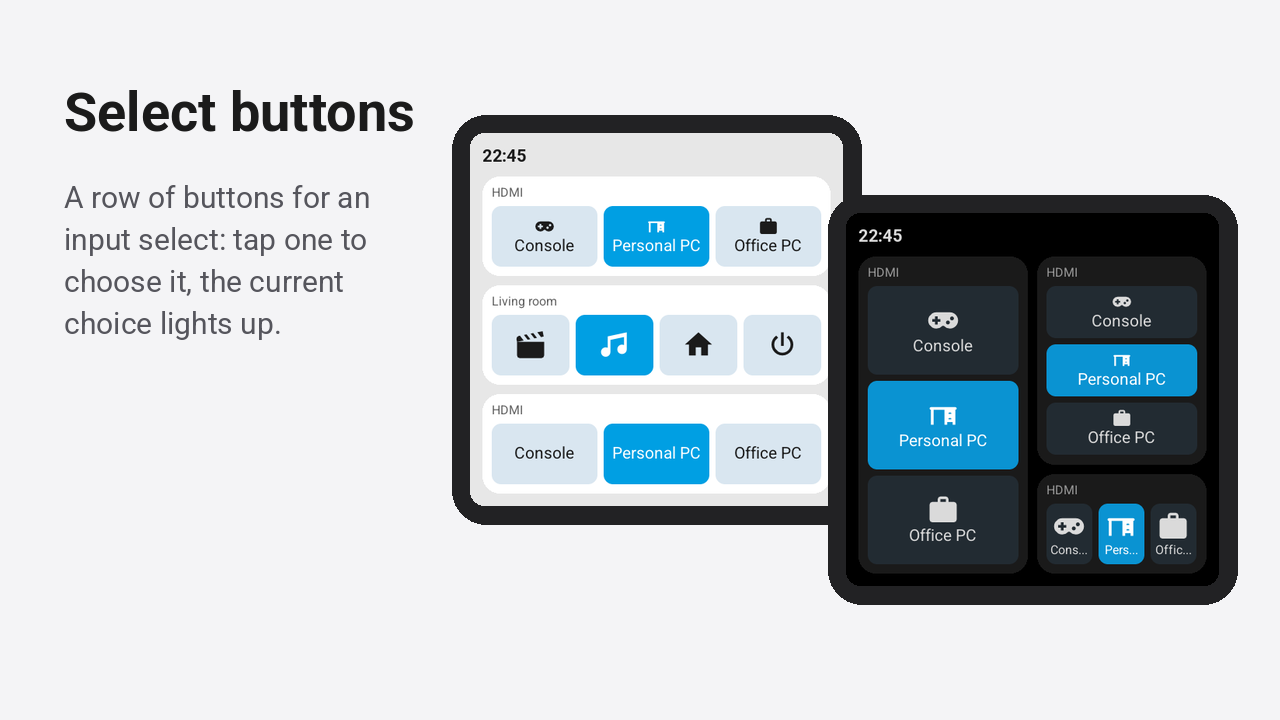
A row of buttons for an input select: tap one to choose it, the current choice lights up.
On each screen
| Screen | Rating | Ratings | Homes |
|---|---|---|---|
| Guition 4″ · ESP32-S3-4848S040 | Not yet | 0 | 1 |
| Guition 7″ · JC1060P470 V2 | Not yet | 0 | 1 |
How these numbers are counted
Everything here is shared by choice from the Tessera app, one per installation of the app, without an account. A like can come from anyone, also from someone who does not run the plugin. A rating comes from someone who has run it on a screen for a few days, and shows from 3 ratings. Homes are the installations that agreed to be counted and said in the last 30 days that they run it.
These are not verified installations or a quality score. Reinstalls and lost keys can affect them, and one home network adds at most two of each to a plugin.
What the app sharesA row of buttons for an input_select or a select in Home Assistant: one button for each option, the current option
lit. Tap a button to choose that option. Made for switching an HDMI input between a few sources, but it works for any
choice of a handful of options: a scene, a mode, a speaker.
- Every option of the entity gets a button, up to six. A wide tile puts them in a row, a tall one stacks them, a square one makes a grid.
- The current option is the lit button. When the option changes elsewhere (an automation, the Home Assistant app, a remote), the screen follows.
- After a tap the button gets a ring until Home Assistant has the new option; then it lights up.
- Give each button an icon if you like; with Show the option names off, only the icons show.
- Turn on Tap twice to switch and the first tap asks "Tap again": against switching away by accident.
What you need
- Tessera 0.4.91 or later.
- An
input_selecthelper or aselectentity in Home Assistant with the options you want, such asConsole,Personal PCandOffice PC.
Set up
- Add the plugin to a screen in the Tessera app.
- In Layout, place the Select buttons tile from the plugin library, in the size you like (three across is a three-way switch).
- In the inspector, choose the
input_selectorselectas the tile's entity. - Optionally, choose an icon for each option (in the order Home Assistant lists them), turn off Show the name or Show the option names, or turn on Tap twice to switch.
- Build and install the screen.
Good to know
- The buttons send
input_select.select_optionorselect.select_option; the screen must be allowed to perform actions. - On a 1x1 tile three keys stand side by side and long names are cut short: give them icons, or use a wider tile.
- An entity with more than six options shows the first six. Tessera's own tile for the entity has them all.
- An option of more than 45 characters arrives cut short, so its button shows but cannot choose it.
Screens it was tried on
- Guition 4-inch (ESP32-S3, 480 x 480), Tessera stable.
Not tried yet on the CYD or the 10-inch screens. Tell me in an issue how it works on yours.