 tessera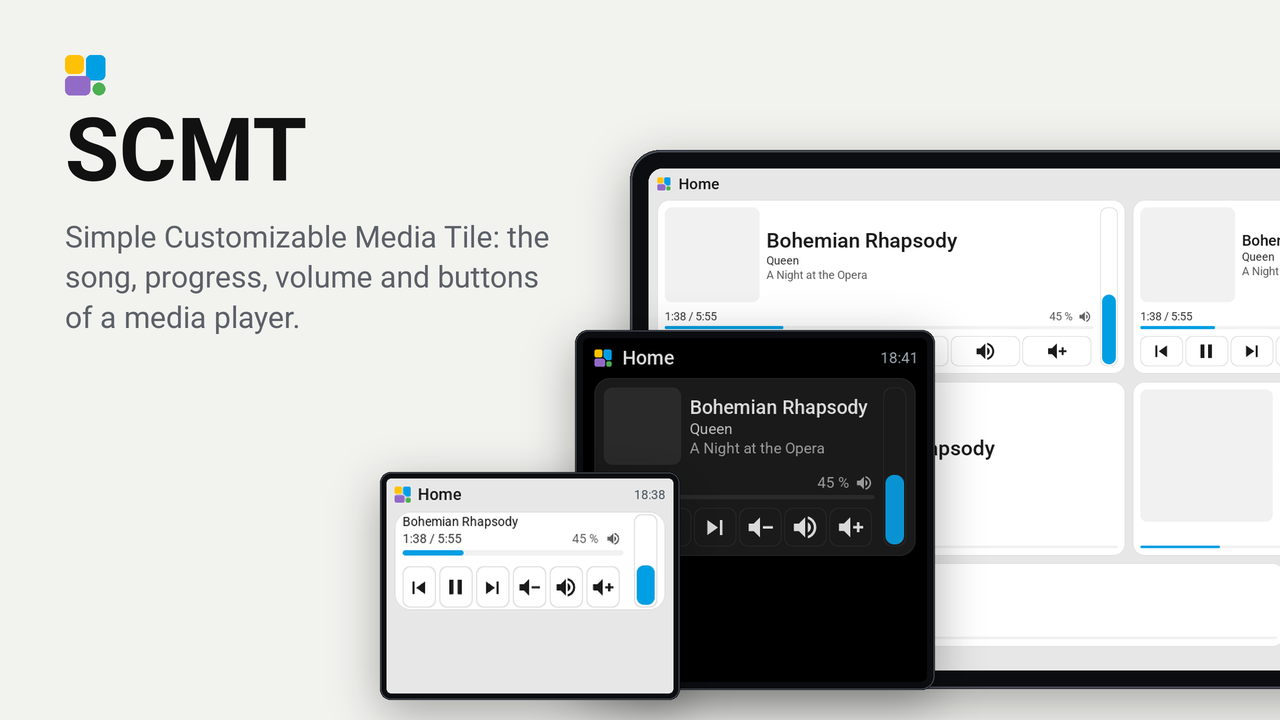
SCMT
Simple Customizable Media Tile: the song, progress, volume and buttons of a media player.
English · Deutsch · Français · Español · Italiano · Nederlands
Two tiles for Tessera that show and control what a Home Assistant media player is playing.
Tile "SCMT"
The title in large letters, the artist below it, and an optional progress bar at the bottom.
- While something plays, the title and the artist. While paused, the same, with the title dimmed.
- When nothing plays, "Nothing playing"; before a player is chosen, "Choose a player".
- A title that is too wide for the tile gets a smaller font first, then ends in dots, as every label of the screen. So do an artist and an album that are too wide.
- The option "Progress" shows a bar (its height is an option too, 2 to 16 pixels), the time (played / length), both, or
nothing. It needs the player to report
media_durationandmedia_position; a player that does not shows neither. - The option "Volume display" shows the volume at the right end of the line over the progress bar, beside the time:
for three seconds after it changed, always, or never. It needs
volume_level; a muted player shows "Muted". - A tap on the tile plays or pauses.
- The album cover stands beside the title, when the tile is at least two cells wide and the screen can show pictures (the small boards cannot). The option "Album cover" puts it at the left (default) or at the right of the text, or switches it off.
- The option "Buttons" adds buttons under the title: playback (previous, play/pause, next), volume (quieter, mute, louder), or both. They need a tile of two rows or more. With the volume buttons, a tap on a volume display mutes too.
- A tap on the progress bar jumps to that place in the song.
More options of this tile
- Position of the text: title, artist and album in the middle (default), at the top or at the bottom beside the cover. At the top or the bottom, the text lines up with the cover's upper or lower edge.
- Big display: a half see-through display over the whole tile, for the volume, for the pause, or both. Off by
default.
- Volume: for three seconds after the volume changes, the number and a speaker. With the volume buttons, a tap on it mutes.
- Pause: while the player is paused, the pause sign.
- Text size: small, medium (default) or large, for title, artist and album.
- Volume bar: an upright bar along the right edge of the tile; a tap on it sets the volume to that height. Needs two columns.
- Colour of the bars: the fill of the progress bar and the volume bar: the screen's accent (default), green, amber, red, blue, purple, or like the text. They are the core's colours, readable in light and dark; Tessera allows no colour of your own.
- Extra lines: under the artist, the album, the tempo of the music (for example "138 BPM"), or both, when the tile is high enough. The tempo comes from the tempo sensor chosen for the screen (see "Tempo" below).
- Cover address: the address of a picture in Home Assistant, shown instead of the player's own picture, for example a template image with the player's cover (see "The cover" below).
Tile "SCMT button"
One button for the same media player: previous, play/pause, next, louder or quieter. Choose the button in the tile's options and place as many of these tiles as you like, next to the "SCMT" tile.
Setup
- Add the plugin to your screen in Tessera (Plugins) and build the screen.
- Place the tiles in the layout.
- In each tile's inspector, choose the media player. Any
media_playerentity works, for example the one that HASS.Agent makes from the Windows media session, or the Spotify integration. - Make sure the screen may perform Home Assistant actions. Tessera turns this on for a screen it added to Home Assistant; for a screen added by hand, tick Allow the device to perform Home Assistant actions in the ESPHome integration's options for that device.
Tried on a Guition ESP32-S3 with a 4-inch screen (480 × 480). Other boards are untested so far; tell me in an issue how it works on yours.
The buttons use the Home Assistant actions media_player.media_play_pause, media_next_track, media_previous_track,
volume_up, volume_down, media_seek, volume_mute and volume_set. A player that does not support one of them
ignores it.
Tempo
The choice "Tempo" of the option "Extra lines" of the "SCMT" tile shows the tempo of the music as a line under the artist. Home Assistant knows no tempo of its own, so it comes from a sensor, for example the one HASS.Agent makes from BPM2SCMT, which measures what a Windows PC plays.
- In Tessera (Plugins), choose the sensor as the plugin's "Tempo sensor" for the screen, and build the screen. Its state
must be the tempo as a number (
138);unknownor empty hides the line. - In the tile's options, choose "Tempo" or "Album and tempo" under "Extra lines".
The tile shows the tempo while the player plays or is paused. After a new track it waits until the sensor has the new tempo (it was empty once and has a value again), at most 12 seconds, so that it does not show the tempo of the track before. The sensor is one per screen, not per tile: it belongs to the PC that plays, whichever player the tile shows.
The cover
By default the cover is the picture Home Assistant itself has for the media player (its entity_picture); the plugin
fetches nothing from the internet.
A tile may show only pictures from /api/image/serve/, /api/image_proxy/ or /local/, and text attributes are cut at
48 bytes. The cover of some players (for example the one of HASS.Agent, /api/media_player_proxy/...) is refused for
that reason.
For these players there is the option "Cover address" together with a template image in Home Assistant.
Cover through a template image
A template image is an entity of Home Assistant that holds the player's current cover. The tile shows it through
/api/image_proxy/, an address the Tessera app may fetch. No automation, no file and no change in configuration.yaml
are needed.
- In Home Assistant, open Settings → Devices & services → Helpers → Create helper → Template → Image. Give it a
name, for example "SCMT Cover" (the entity is then
image.scmt_cover), and enter as the URL:
http://127.0.0.1{{ state_attr('media_player.your_player', 'entity_picture') }}
Replace media_player.your_player with your player. http://127.0.0.1 is Home Assistant as it reaches itself;
the address of the player's picture already holds its token, so Home Assistant may fetch it without a login.
2. In the tile's options, enter as the "Cover address":
/api/image_proxy/image.scmt_cover?v={v}
The entity ID must match the helper's exactly (you see it in the helper's settings).
The address is used exactly as typed, except for {v}: the plugin replaces it with a number that changes with every
track, so the screen asks again (Home Assistant ignores the ?v=... part). Three seconds after a new track it asks once
more, in case the picture came a moment late. An address without {v} never changes, so the screen shows the first
picture it loaded until the address changes.
To check, open the helper in Home Assistant: it shows the current cover. Opening
http://YOUR_HOME_ASSISTANT/api/image_proxy/image.scmt_cover in a browser gives "401: Unauthorized"; that is normal,
because the address needs a token (?token=...), which the Tessera app sends by itself.
A file in the www folder (/local/...) does not work with the current Tessera app (0.4.88): it fetches /local/
through the Supervisor, which refuses it (403), so the tile shows a grey block
(MaxGramser/tessera-plugins#6).
Privacy
The plugin makes no network requests. It only reads what Home Assistant already knows about the chosen entity, and calls the media player actions above on it when you tap a tile. The template image of the cover runs in Home Assistant, not in the plugin.