 tessera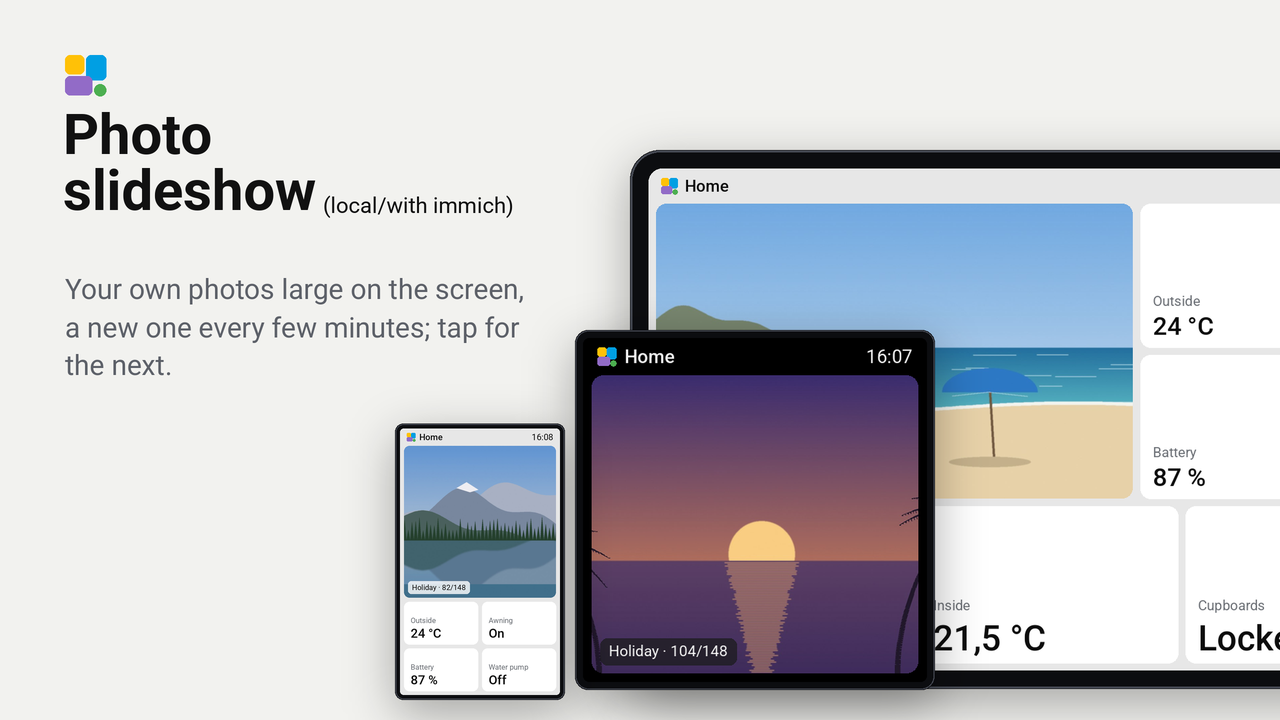
Photo slideshow
Your own photos large on the screen, a new one every few minutes; tap for the next.

Your own photos (a holiday, the kids, the dog) on a Tessera screen. Home Assistant picks a photo every few minutes; the tile shows it, slides it away when the next one comes, and a tap on the tile asks for the next photo at once. The caption at the bottom says the album and which photo of how many ("Holiday · 12/148").
The photos come from a folder in Home Assistant, or from an album in Immich that Home Assistant copies into that folder, so the slideshow keeps going without internet. In standby, Tessera's own Photos screensaver (Tessera 0.4.89) shows the same folder, with this plugin's caption over it.
How it works
/config/www/slideshow/*.jpg ──► sensor.slideshow (Folder: the list of files)
                                  │
                                  ▼
             sensor.slideshow_photo (a template sensor: picks one every few minutes)
                                  │  state: /api/image_proxy/image.slideshow_photo?v=<photo>
                                  ▼
             image.slideshow_photo (an image entity: Home Assistant serves the photo)
                                  │
                                  ▼
             Tessera's app fetches it and sends it to the screen ──► the Slideshow tile
The photo goes through an image entity because Tessera's app runs as an add-on: it reaches Home Assistant through the
Supervisor, which passes /api/... on but not the www folder (/local/...).
Set up
- Make the folder
/config/www/slideshow(with the Samba or File editor add-on) and put photos in it: JPG or PNG, each under 4 MB. Or fill it from Immich: see "Photos from Immich" below. - Copy
homeassistant/photo_slideshow.yamlto/config/packages/. In it, changehttp://homeassistant.local:8123to the address of your Home Assistant as your browser reaches it. - Add to
configuration.yaml:homeassistant: packages: !include_dir_named packages allowlist_external_dirs: - /config/www/slideshow media_dirs: local: /media # Home Assistant's own media folder, which media_dirs would otherwise replace slideshow: /config/www/slideshowmedia_dirsoffers the folder as My media → slideshow too, for Tessera's Photos screensaver (below). Check the configuration (Developer tools → YAML) and restart Home Assistant. - Within a minute
sensor.slideshow_photohas a state such as/api/image_proxy/image.slideshow_photo?v=IMG_0412, andimage.slideshow_photoshows that photo. - Add this plugin to a screen in Tessera: Plugins → Add with a link, with this repository's address. The screen builds once.
- In Layout, place the Slideshow tile from the library's Plugins group, as large as you like, and choose
sensor.slideshow_photoas its entity. The editor shows the caption only; the photo shows on the screen itself. - In the inspector: Fit (cover fills the tile, contain shows the whole photo), what stands over the photo, each on or off (Album and numbers, Photo name, Place, Date taken, Time) and the Corner it stands in, the Transition (slide to the left, to the right, or none), and Seconds between photos (0 leaves the pace to Home Assistant; otherwise the screen asks for the next photo every so many seconds, at least 5). The place and the date taken come from Immich (below); a photo of a folder without Immich has its file name as its name, and no place or date.
- For a tap to give the next photo, allow the screen to perform Home Assistant actions: Settings → Devices & services → ESPHome → the screen → Configure.
The order is input_select.slideshow_order: shuffled, by name, or by the date taken (from Immich). Without seconds on
the tile, the photo changes every input_number.slideshow_interval minutes; set that to 0 when the
tile keeps the pace, so Home Assistant changes the photo only when a screen asks. The album in the caption is
input_text.slideshow_album. Both are in Home Assistant: change them without building the screen. With several
screens on one sensor, every screen shows the same photo, and each screen that keeps a pace moves them all on.
Photos from Immich
homeassistant/immich_sync.yaml lets Home Assistant copy one Immich album into
/config/www/slideshow every 15 minutes, as Immich's own JPG previews (about 1440 pixels, so HEIC and the 4 MB limit
no longer matter). Photos already there are not fetched again: in a holiday home or a caravan, the slideshow keeps
going when the internet is away.
- In Immich, make an API key with only
asset.readandasset.view. - Put
immich_url,immich_search_urlandimmich_api_keyin/config/secrets.yaml(the comments at the top of the file say how). Mind: that is Home Assistant's ownsecrets.yaml, not the ESPHome add-on's. - Add the Downloader integration with the folder
/config/www. - Copy
immich_sync.yamlto/config/packages/and restart Home Assistant. - Fill in the album's id (the last part of its address in Immich) in
input_text.immich_album. Immich fetch now starts at once; after that it runs every 15 minutes, 40 photos a round.
It also keeps every photo's original name, the place it was taken (city and country) and the date in
sensor.slideshow_meta, which the slideshow reads for the details over the photo. A photo you take out of the album
stays in the folder until you delete it there; at most 1000 photos of an album are taken.
As Tessera's screensaver
Two ways, both with Tessera 0.4.89 (firmware 0.57.0, plugin API 0.14).
The slideshow's own step (every detail): in Tessera, open the screen → Settings → Screensaver, turn on Show in
standby (and Auto standby), choose Add from plugins → Photo slideshow, pick sensor.slideshow_photo as its
entity and drag it to the top. In standby it shows the slideshow's photo over the whole glass, with the same details as
the tile, each on or off (the time on by default), and Seconds between photos of its own.
Tessera's own Photos step, with this plugin's caption: for any media folder, with Tessera's own pace, order and slow motion. It knows the album and which photo of how many, not a photo's name, place or date.
- In Tessera, open the screen → Settings → Screensaver, and turn on Show in standby (and Auto standby).
- Open the step Photos. Under Folder, choose My media → slideshow (the
media_dirsof step 3 above). - Under Face, choose Photo slideshow caption (Photos). In its options: the Corner, a Caption of your own (empty: the folder's name), Photo numbers (12/148) and the Time.
- Choose how long each photo stands, the order and the fit, and drag Photos to the top of the steps.
The Photos step walks the folder by itself, apart from the tile: it has its own photo and its own pace. Pick the folder,
not the Immich album, when the screen is somewhere without internet: the album is read live from Immich. The Waveshare
4.3, 5 and 7-inch boards never go into standby, so they have no screensaver. Before 0.4.89, the screensaver could show
image.slideshow_photo as a Camera instead.
Good to know
- 4 MB at most per photo, JPG or PNG. Photos of a phone are often larger, and iPhones store HEIC: make smaller
copies first, for instance with ImageMagick:
magick mogrify -format jpg -resize "2000x2000>" -quality 85 *.HEIC. The Immich sync does this for you. - A board without the memory for pictures (the CYD, the Waveshare 3.5-inch, the Hosyond 4-inch) says so instead.
- The Folder sensor's list of files can be long: keep it out of the history with
recorder: exclude: entities: [sensor.slideshow, sensor.slideshow_meta]inconfiguration.yaml(the second one holds the details of every photo of the Immich album). - The tile stays empty with only its caption: open
image.slideshow_photoin Home Assistant. Without a photo there, the address in the package (step 2) is not the one Home Assistant reaches itself on.
Privacy
Everything stays in your home. Tessera's app fetches each photo from Home Assistant itself and sends it to the screen;
the screen never reaches the internet. Mind that Home Assistant serves the www folder (/local/) without a login to
anyone who can reach your Home Assistant and knows a file's name. The Immich sync talks only to your own Immich, with a
key that can read your library but change nothing.