 tessera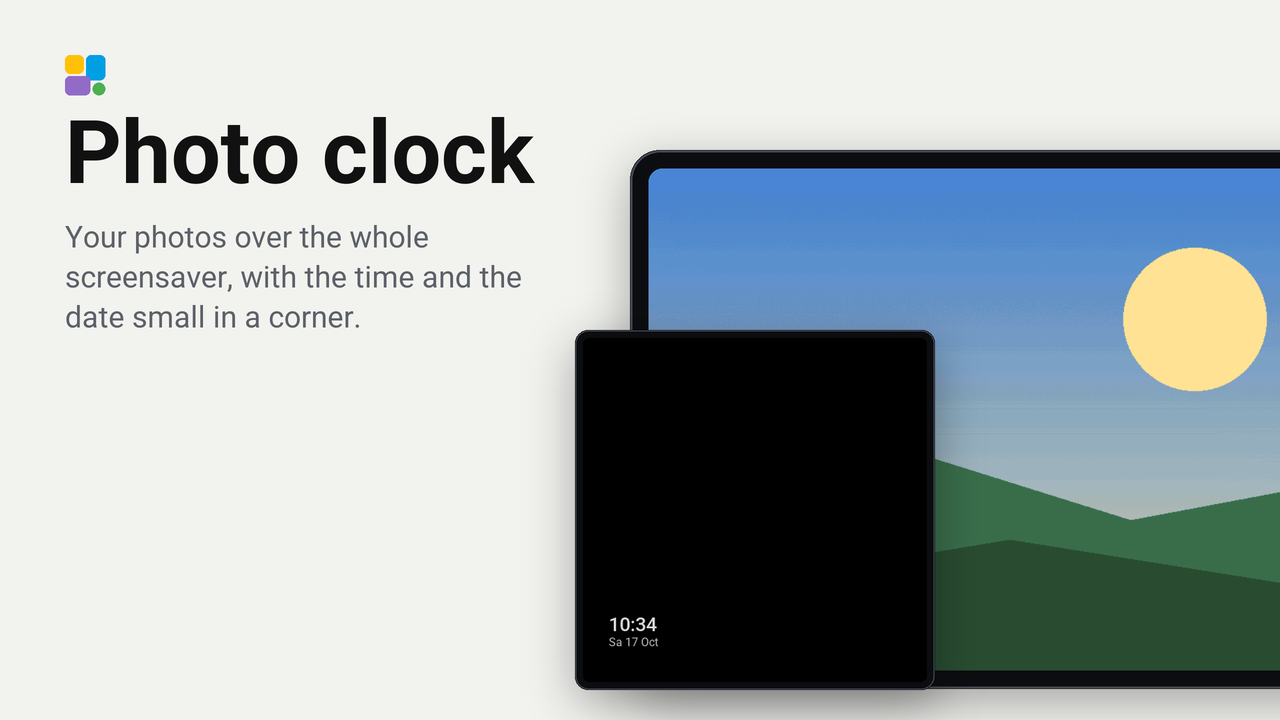
Photo clock
Your photos over the whole screensaver, with the time and the date small in a corner.
How these numbers are counted
Everything here is shared by choice from the Tessera app, one per installation of the app, without an account. A like can come from anyone, also from someone who does not run the plugin. A rating comes from someone who has run it on a screen for a few days, and shows from 3 ratings. Homes are the installations that agreed to be counted and said in the last 30 days that they run it.
These are not verified installations or a quality score. Reinstalls and lost keys can affect them, and one home network adds at most two of each to a plugin.
What the app sharesA face for the screensaver's photos: each photo of the folder you chose over the whole glass, and the time small in a corner with the date under it, on a soft shade so it reads on a bright photo too.
It is an example to learn from: a screensaver whose one picture is the step's own photo, and that lets the screen move it a little every minute, so the time never stands on the same pixels for hours.
Set up
- Add the plugin to a screen in Tessera. The screen builds once.
- Open the screen's Settings and the Screensaver card. Turn on Show in standby (the screen needs Auto standby on too).
- Click the Photos step, choose a folder of Home Assistant's media and how long each photo stands, and choose Photo clock under Face.
- Choose the Corner the time stands in.
Good to know
- It shows on screens that show pictures, as the photos step does. The CYD, the Waveshare 3.5-inch and the Hosyond 4-inch show the clock instead.
- The photo fills the glass and is cut to it, whatever the step's own fill says.
- A screen without the plugin shows Tessera's own photos.