 tessera
Ora
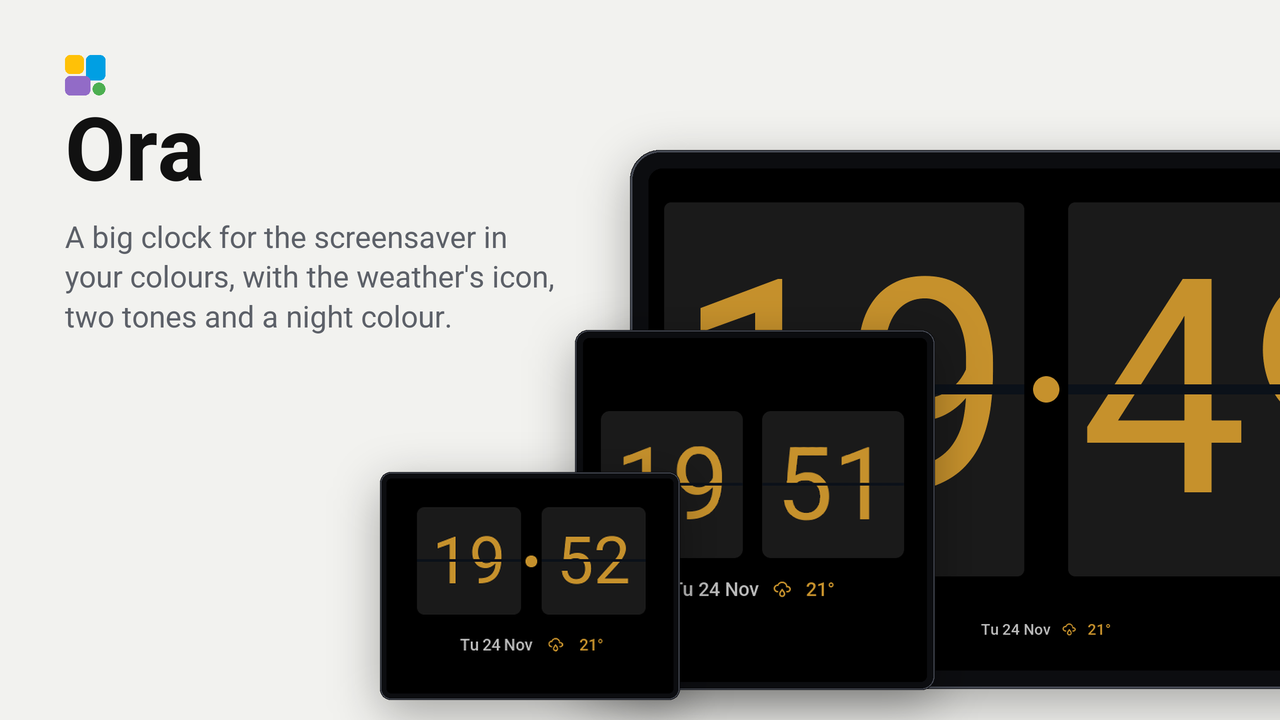
A big clock for the screensaver in your colours, with the weather's icon, two tones and a night colour.
On each screen
| Screen | Rating | Ratings | Homes |
|---|---|---|---|
| Guition 4″ · ESP32-S3-4848S040 | Not yet | 0 | 2 |
| Guition 4.3″ · JC4880P443 | Not yet | 0 | 1 |
| Guition 10.1″ · JC8012P4A1 V3 | Not yet | 0 | 1 |
| Waveshare 4″ · ESP32-S3-Touch-LCD-4B | Not yet | 0 | 1 |
How these numbers are counted
Everything here is shared by choice from the Tessera app, one per installation of the app, without an account. A like can come from anyone, also from someone who does not run the plugin. A rating comes from someone who has run it on a screen for a few days, and shows from 3 ratings. Homes are the installations that agreed to be counted and said in the last 30 days that they run it.
These are not verified installations or a quality score. Reinstalls and lost keys can affect them, and one home network adds at most two of each to a plugin.
What the app sharesA big clock for Tessera's screensaver, in the colours you choose. Ora (Greek for "hour") shows the hours and the minutes in two boxes as large as the screen allows, with the date, the weather's icon and the outside temperature under them.

Set up
- In Tessera, open Plugins, choose Add with a link and paste
https://github.com/CooLaToS/tessera-plugin-ora(or find Ora in the list once it is listed there). Add it to a screen; the screen builds once. - Open the screen's Settings and the Screensaver card. Turn on Show in standby (the screen needs Auto standby on too).
- Click the Clock step and choose Ora under Face.
- Pick the colours, the style and the size in the same drawer.
- For the weather's icon: in the same drawer, press + beside the clock, add your weather entity and choose Icon under Shows.
Examples
Every picture is the real firmware with Ora, drawn by Tessera's plugin bench on a Guition 4-inch (480 x 480) unless it says otherwise. Under each one, the options that make it.
 |
 |
| Gold flip cards: the defaults. | White on blue: hours White, boxes Blue. |
 |
 |
| Normal size: hours Teal, style Outline, size Normal, date 20 November. | Two tones: hours Gold, minutes Champagne, boxes Tinted, date 20/11, row Icons and words. |
 |
 |
| Wood: hours Champagne, boxes Walnut, date and temperature Mint, date 20/11, row Icons and words. | Oak and walnut: hours Oak, minutes Champagne, boxes Walnut, date Oak, date Friday 20 November. |
 |
 |
| Outline, stacked: hours Champagne, style Outline, size Stacked, date Friday 20 November. | Plain: hours Amber, style Plain digits, no leading zero, no seconds dot, no date, row Off. |
 |
 |
| CYD 2.8-inch (320 x 240): the defaults. | Guition 10.1-inch (1280 x 800): two tones. |
Options
- Hours colour and Minutes colour: Gold (default), Champagne, Amber, Orange, Red, Pink, Purple, Blue, Teal, Green, Oak, Walnut, Mint, White or Night grey. Give the minutes their own colour for two tones.
- Box colour: Graphite flip cards, cards Tinted with the hours' colour, or any colour above. With Outline it is the colour of the line.
- Style: Flip cards, Outline, or Plain digits with a colon.
- Size: Large (side by side, as wide as the screen; best on a square or wide screen), Stacked (hours above minutes; best on a tall screen) or Normal (the screen's own digit size).
- Date: Fri 20 Nov, 20/11, 20 November, Friday 20 November, Friday, or no date.
- Weather and entities: the entities you add to the Clock step's row (the + beside the clock in the Clock drawer). A weather entity shows its condition, sun, cloud or rain, before the temperature. Icons (default), icons and words, or off. Up to four; those that do not fit the width are left out.
- Date colour and Temperature colour (also the colour of the row's icons).
- Night colour: during the screen's night hours the same colours, the same but dimmer, or one colour for the whole clock (deep red is easy on the eyes).
- Leading zero (09:05 or 9:05) and Seconds dot.
Tried on
- Real screens: two Guition ESP32-S3-4848S040 (4-inch, 480 x 480) with Tessera 0.4.99 and firmware 0.62.0, one on a wall and one on a desk: the gold flip cards in Large, the minute changing, the seconds dot, the date and the temperature, in standby by day. The other styles and colours are from the bench so far.
- The bench of tessera-plugins (the real firmware, built for a computer): the CYD 2.8-inch, the Guition 4-inch, the Waveshare 4.3-inch standing up and the Guition 10.1-inch, every option.
- The firmware build on GitHub (
.github/workflows/build.yml) compiles Ora into the newest Tessera release for the CYD (ESP32, 4 MB), the Guition 4-inch (ESP32-S3) and the Guition 10.1-inch V3 (ESP32-P4), at every change and every Monday. - Every screen Tessera supports can run it (
boards: any) once it has plugin API 0.29 (Tessera 0.4.102, firmware 0.64.0). Screens that never go into standby, such as the Waveshare 4.3-inch, show no screensaver at all, so no Ora either.
Tried it on another screen? Tell me how it looks in a "Tried it on my screen" issue.
Privacy
Ora makes no connections and performs no Home Assistant actions. It draws only what Tessera's clock step hands every face: the time, the outside temperature and the entities you put in the clock's row.
Good to know
- Any colour on any box stays readable: when the digits would not stand out enough from their box (red on blue, say), Ora darkens the box until they do.
- Large and Stacked draw the time in Tessera's own clock digits (the flip clock's and the bedside clock's, which every screen carries already), the largest that fits the glass at its own size: sharp on every screen, up to the 10-inch. Where none fits well, the next larger one is drawn a little smaller.
- The night colour is chosen when the screensaver comes on. If the night hours begin while the clock is already showing, it changes the next time the screen goes to standby.
- The screen moves the whole clock a millimetre every minute, so nothing stands on the same pixels for hours.
- A screen without the plugin shows Tessera's own clock.
- English and Greek. The Greek texts show once Tessera itself speaks Greek: its editor and its screens' fonts do not have Greek yet.
Tests
uv run tests/run.py              # unit, check and bench
uv run tests/run.py unit         # only the unit tests of the face's logic (seconds)
- unit:
components/ora/ora_logic.h(the choices, the time and date texts, the line under the clock, where every part stands on every kind of screen, and the contrast of every colour on every box) compiled for your computer with the sanitizers,tests/test_logic.cpp. - check: Tessera's
tools/check.py. - bench: Tessera's bench in strict mode: the showcase on four kinds of screen, then the layout combinations of
tests/combos.pyon the Guition 4-inch. Any finding fails.ORA_FULL=1renders all 486 combinations.
The check and the bench need a clone of tessera-plugins beside this
repository (or TESSERA_PLUGINS=<path>), its bench set up once (python3 tools/preview.py --setup there).
On GitHub, check.yml runs the unit tests, Tessera's check and a secret scan, build.yml the firmware builds (at
every change and every Monday), tessera-watch.yml builds again the day a new Tessera release comes out, and
release.yml publishes a release from a v* tag only when the check and the builds pass.
Bugs, ideas and pull requests
Found a bug, tried Ora on a new screen or have an idea? Open an issue; the forms ask for what is needed. Pull requests for fixes, translations and small improvements are welcome. Read CONTRIBUTING.md first: it has the rules and the checks to run.
Credits
The layout of the flip cards follows Tessera's own Flip clock example (MIT, Max Gramser). Ora is written from Tessera's plugin template.