 tessera
Jellyfin
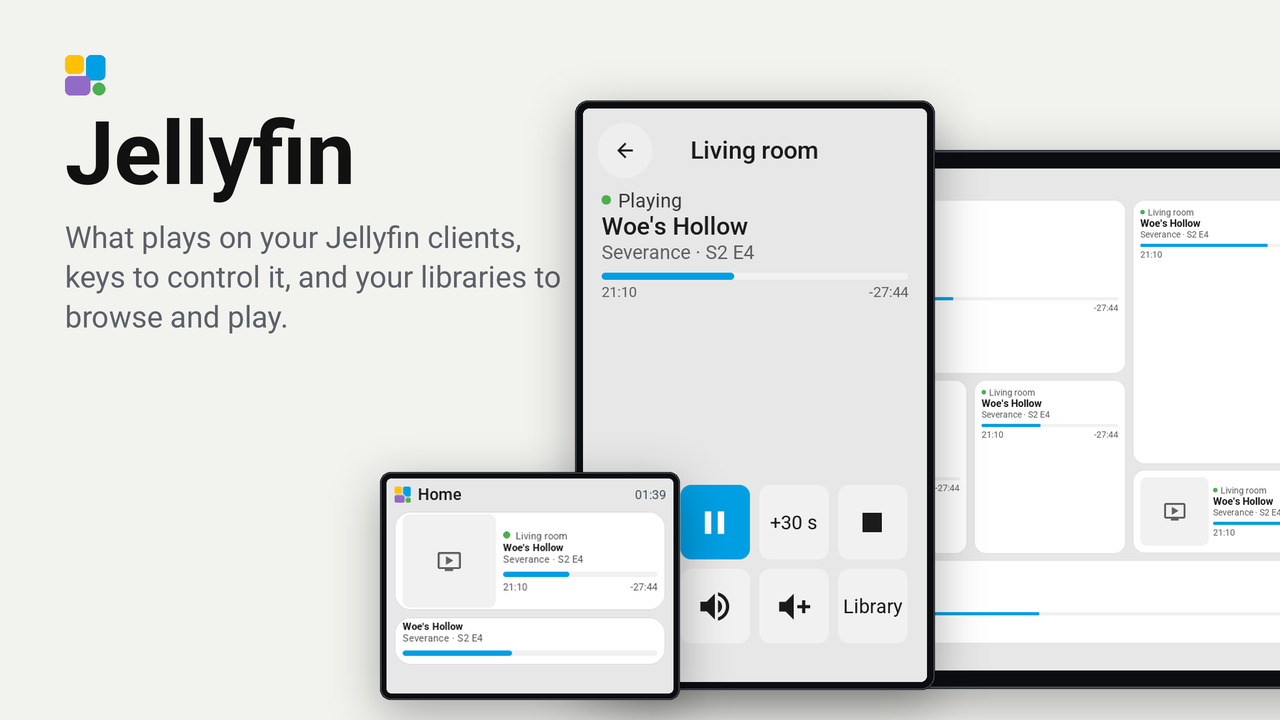
What plays on your Jellyfin clients, keys to control it, and your libraries to browse and play.
On each screen
| Screen | Rating | Ratings | Homes |
|---|---|---|---|
| Guition 7″ · JC1060P470 V2 | Not yet | 0 | 1 |
How these numbers are counted
Everything here is shared by choice from the Tessera app, one per installation of the app, without an account. A like can come from anyone, also from someone who does not run the plugin. A rating comes from someone who has run it on a screen for a few days, and shows from 3 ratings. Homes are the installations that agreed to be counted and said in the last 30 days that they run it.
These are not verified installations or a quality score. Reinstalls and lost keys can affect them, and one home network adds at most two of each to a plugin.
What the app sharesControl depends on the device. The screen always shows what plays, but play, pause, seek, volume and the library work only when the Jellyfin app on that device takes remote commands. Many don't, such as the Chromecast, and some TV and phone apps. See "Not every Jellyfin app takes commands" below for a quick check.
What plays on your Jellyfin clients, with its cover, the series and episode or the artist, and how far along; a card with keys to play and pause, seek, stop, change the volume and mute; and your libraries to browse and play from the screen.
It works with Home Assistant's own Jellyfin integration. The screen never talks to the Jellyfin server: Home Assistant does, and the screen reads and controls the integration's media players.
Set up
1. First, in Home Assistant
- Add the Jellyfin integration (Settings > Devices & services > Add integration > Jellyfin) with your server's address and a Jellyfin user.
- Open a Jellyfin app on a TV, a phone or a browser. The integration makes a media player for every app or device
that connects to the server (
media_player.living_room_tv). It stays in Home Assistant when the app closes, as unavailable until the app connects again. - Let the screen perform actions: Settings > Devices & services > ESPHome > your screen > Configure > tick Allow the device to perform Home Assistant actions. Without it the keys do nothing.
2. The tiles
Add the plugin to a screen in Tessera (the screen builds once). In Layout, from the library's Plugins group:
- Jellyfin now playing: choose one Jellyfin media player as its entity. It shows the cover (on screens with pictures), the title, the series and episode or the artist and album, and a bar with the time played and left. With nothing playing it says so.
- Jellyfin sessions: choose up to eight Jellyfin media players, and in Names your own names for them in their
order (
Living room, Bedroom; an empty place keeps the player's name). The ones that play come first. Turn on Only what plays to leave out the idle and offline ones.
Changing an entity in the inspector needs no build.
3. The control card
- Tap a now playing tile, or a row of the sessions tile. The card opens with the cover, what plays and how far along.
- Keys: back and forward by the Seek step of the tile (30 s unless you change it), play and pause, stop, the volume down and up, and mute. A key shows only when the Jellyfin app says it can do it: not every app reports a volume, for example.
- Library opens the library card for that player.
- If a key does nothing, the device's Jellyfin app is not taking remote commands: this depends on the device and its app, not on the screen. The same key in Home Assistant's own media card does nothing either.
4. The library
- The card starts with your libraries (Movies, Shows, Music). Tap one to open it, then a series, a season or an album.
- Tap a film, an episode or a song to play it on the player the card was opened for. Play all plays the folder that is open (a season, an album).
- Back at the top left goes up a level; the arrows at the bottom turn the page.
Good to know
- A large library shows its first items only. An answer of Home Assistant reaches the screen within about 3 KB, so a folder shows only its first items (about ten, in the server's order), and the card says there may be more. Open a smaller folder (a series, a season, a collection) to reach the rest.
- No covers in the library. Its pictures are on your Jellyfin server, on the home network, where Tessera fetches nothing. The now playing tile and the control card do show the cover: Home Assistant hands it over.
- No next and previous track. The integration's media player has no such action; use seek, or the library.
- Several players with one name. Jellyfin makes a media player for every session, so a TV can show up several
times (three "Samsung Smart TV",
media_player.samsung_smart_tv_2, ...). Choose the one whose state changes while it plays, and choose again if the app makes a new one. - Not every Jellyfin app takes commands. An app that cannot be controlled remotely shows what it plays, but has no keys and no library. The Chromecast receiver reports no commands at all, and in one home a Samsung (Tizen) and an Android app accepted nothing from Home Assistant while a browser did. A quick check: Jellyfin's dashboard shows control buttons on a session only when the server can control it; without them, Home Assistant and the screen cannot either.
- The cover as a screensaver. Tessera's own screensaver step Music playing (the screen's Settings > Screensaver) shows the cover of a Jellyfin player while it plays; no plugin needed.
- The library is read through the player's own media player, so it needs that player connected to the server.
Tested
On a real Guition 4" screen, with Jellyfin's Samsung (Tizen), Android, Android TV, Chromecast and web apps, and on Tessera's bench with no warning (CYD, Guition 4", Waveshare 4.3" portrait, JC8012P4A1).