 tessera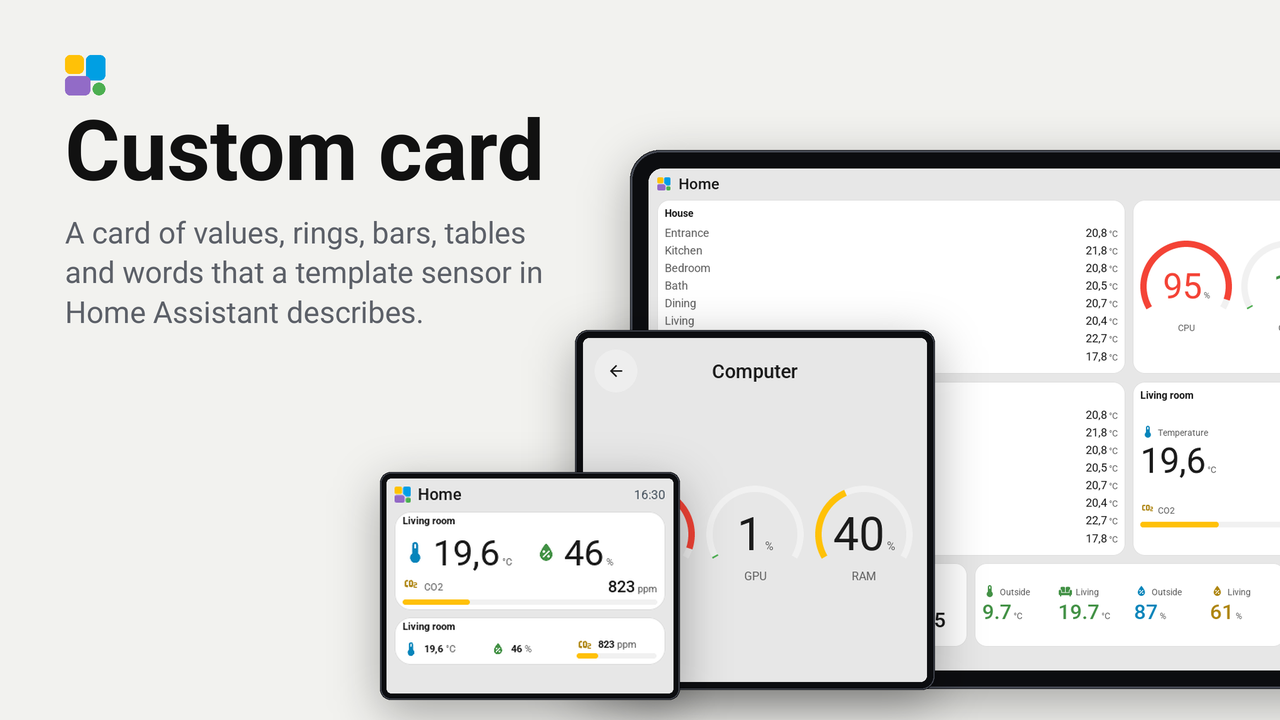
Custom card
A card of values, rings, bars, tables and words that a template sensor in Home Assistant describes.
How these numbers are counted
Everything here is shared by choice from the Tessera app, one per installation of the app, without an account. A like can come from anyone, also from someone who does not run the plugin. A rating comes from someone who has run it on a screen for a few days, and shows from 3 ratings. Homes are the installations that agreed to be counted and said in the last 30 days that they run it.
These are not verified installations or a quality score. Reinstalls and lost keys can affect them, and one home network adds at most two of each to a plugin.
What the app sharesA tile you put together yourself: values, rings, bars, lines of words and tables that a template sensor in Home Assistant describes, drawn by the screen in its own fonts and colours. A room's climate on one tile, a list of rooms, the batteries that run low, the next departures from your stop: whatever a template can say.
The card lays itself out for the tile it stands on. On a tile one row high and two columns or more the parts stand side by side; any other tile stacks them: values side by side, a bar, a line of words or a row of a table across the width. Values take the largest face that fits, on a large tile the climate card's large digits; rows and words grow with the room as well. A tap opens the parts large on a card over the page, with their labels.
Set up
- In Home Assistant, make a template sensor whose attribute
elementslists the card's parts, one text per part (the examples below), put it inconfiguration.yaml, and reload Template entities in Developer tools, YAML. - In Tessera, open Plugins, choose Custom card and tick your screens. Each screen builds once.
- In Layout, place the Custom card tile from the library's Plugins group, at any size, and choose the template
sensor in its inspector. It offers the sensors that have an
elementsattribute.
Examples
Copy one, change the entity ids to your own, and reload Template entities. Each goes under template: in
configuration.yaml.
examples/living_room.yaml
is a larger one, with levels for the humidity and the CO2.
A room's climate
Values with icons, the humidity's colour by its level, and the CO2 as a bar from 400 to 2000 ppm.
template:
  - sensor:
      - name: Living room card
        state: "{{ states('sensor.living_room_temperature') }}"
        attributes:
          elements: >
            {% set t = states('sensor.living_room_temperature') %}
            {% set h = states('sensor.living_room_humidity') | int(0) %}
            {% set c = states('sensor.living_room_co2') | int(0) %}
            {{ [
              'value|' ~ t ~ '|°C|Temperature|blue|thermometer',
              'value|' ~ h ~ '|%|Humidity|' ~ ('green' if 40 <= h <= 60 else 'orange') ~ '|water-percent',
              'bar|' ~ c ~ '|ppm|CO2|' ~ ('green' if c < 800 else 'yellow' if c < 1200 else 'red')
                ~ '|molecule-co2|400|2000'
            ] }}
The air of a room as rings
Rings side by side, each filled from its lowest to its highest value, its value large in its middle.
template:
  - sensor:
      - name: Air card
        state: "{{ states('sensor.office_co2') }}"
        attributes:
          elements: >
            {% set c = states('sensor.office_co2') | int(0) %}
            {% set h = states('sensor.office_humidity') | int(0) %}
            {{ [
              'ring|' ~ c ~ '|ppm|CO2|' ~ ('green' if c < 800 else 'yellow' if c < 1200 else 'red')
                ~ '|molecule-co2|400|2000',
              'ring|' ~ h ~ '|%|Humidity|' ~ ('green' if 40 <= h <= 60 else 'orange') ~ '|water-percent|0|100',
              'ring|' ~ states('sensor.office_temperature') ~ '|°C|Temperature|blue|thermometer|10|30'
            ] }}
A table of rooms
Rows that follow each other stand as a table: the names at the left, the values in one column at the right.
template:
  - sensor:
      - name: Rooms card
        state: "{{ states('sensor.outside_temperature') }}"
        attributes:
          elements: >
            {% set rooms = [
              ('Kitchen', 'sensor.kitchen_temperature'),
              ('Bedroom', 'sensor.bedroom_temperature'),
              ('Bath', 'sensor.bath_temperature'),
              ('Office', 'sensor.office_temperature'),
              ('Outside', 'sensor.outside_temperature')] %}
            {% set ns = namespace(rows=[]) %}
            {% for name, entity in rooms %}
              {% set v = states(entity) %}
              {% set v = '-' if v in ['unknown', 'unavailable'] else v %}
              {% set ns.rows = ns.rows + ['row|' ~ v ~ '|°C|' ~ name] %}
            {% endfor %}
            {{ ns.rows[:8] }}
The batteries that run low
Every battery sensor of the house, the lowest first, red under 20 %, yellow under 50 %. Home Assistant renders a template that walks all sensors at most once a minute, which is plenty for batteries.
template:
  - sensor:
      - name: Batteries card
        state: "{{ now().minute }}"
        attributes:
          elements: >
            {% set ns = namespace(items=[]) %}
            {% for s in states.sensor
                 | selectattr('attributes.device_class', 'defined')
                 | selectattr('attributes.device_class', 'eq', 'battery')
                 | rejectattr('state', 'in', ['unknown', 'unavailable']) %}
              {% set ns.items = ns.items + [(s.state | int(0), s.name)] %}
            {% endfor %}
            {% set out = namespace(rows=[]) %}
            {% for level, name in (ns.items | sort(attribute='0'))[:8] %}
              {% set colour = 'red' if level < 20 else 'yellow' if level < 50 else 'green' %}
              {% set out.rows = out.rows + ['row|' ~ level ~ '|%|' ~ name[:18] ~ '|' ~ colour ~ '|battery-high'] %}
            {% endfor %}
            {{ out.rows }}
Departures with the line's number
A badge (an icon field that starts with #) shows a line's number in a box, as on a departure board. Where the list
comes from depends on your integration; here it is an attribute departures with line, destination and minutes
for each, so change those names to what your sensor has.
template:
  - sensor:
      - name: Departures card
        state: "{{ now().minute }}"
        attributes:
          elements: >
            {% set ns = namespace(rows=[]) %}
            {% for d in (state_attr('sensor.main_station_departures', 'departures') or [])[:8] %}
              {% set when = 'now|' if d.minutes | int(0) == 0 else d.minutes ~ '|min' %}
              {% set ns.rows = ns.rows + ['row|' ~ when ~ '|' ~ d.destination[:18] ~ '|blue|#' ~ d.line] %}
            {% endfor %}
            {{ ns.rows }}
Counts with a share and a line of words
Two counts, their share as a bar, and when they were counted. With ring instead of bar the share stands beside the
counts as a ring with its number large inside, as large as the tile has room for.
template:
  - sensor:
      - name: Entrance card
        state: "{{ states('sensor.entrance_scanned') }}"
        attributes:
          elements: >
            {% set s = states('sensor.entrance_scanned') | int(0) %}
            {% set v = states('sensor.entrance_valid') | int(0) %}
            {% set p = (100 * s / v) | round(0) | int if v else 0 %}
            {{ [
              'value|' ~ s ~ '||Scanned',
              'value|' ~ v ~ '||Valid',
              'bar|' ~ p ~ '|%|Share|blue||0|100',
              'text|Counted at ' ~ states('sensor.entrance_time') ~ '||||clock-outline'
            ] }}
The parts
Each part is one text, its fields split by | in this order: kind, value, unit, label, colour, icon, and for a bar or
a ring its lowest and highest value. Fields at the end may be left out; a field in the middle stays empty (value|3||Open).
| Kind | What it shows | Example |
|---|---|---|
value |
A number or a word with its unit, the label and icon above it. | value|21.4|°C|Temperature|blue|thermometer |
bar |
A number with a bar under it, from its lowest to its highest value (0 and 100 when left out). | bar|820|ppm|CO2|yellow|molecule-co2|400|2000 |
text |
A line of words; a long one takes two lines where the card has room. | text|Door open||||door-open |
row |
A row of a table: its label at the left, its value at the right. Rows that follow each other stand as a table. | row|20.8|°C|Kitchen |
ring |
A ring filled from its lowest to its highest value (0 and 100 when left out), the value in its middle, the icon and the label under it. Rings that follow each other stand side by side, all as large as the largest; beside values a ring is the same ring and stands among them, growing into the room the tile has; where they do not fit, the number stands as a value. | ring|46|%|Humidity|green|water-percent|0|100 |
- Colour:
red,orange,yellow,green,mint,blue,purple,pinkorgray. As on Tessera's own tiles it marks a part: it colours the icon (a dot where the part has none), the bar, the ring and a badge, and the words stay in the look's own colours. The tile's option Values in their colour paints the numbers too.greengood,yellowandorangemoderate,redbad andbluethe accent are Tessera's own colours, readable in light and dark. - Icon: a name from the editor's icon picker, with or without
mdi:. - Badge: an icon field that starts with
#shows the words after it in a box of the part's colour (the accent without one), such as a line's number:row|4|min|Main station|blue|#16. At most 8 characters.
Good to know
- Home Assistant renders the template; the tile changes whenever the sensor does. Work out levels and colours in the template, round values there, and write the decimal sign you want.
- At most eight parts (two rows of four values), each at most 48 bytes: Tessera cuts longer texts, so keep labels short
(the examples cut names with
[:18]). - Where a tile is too small for every part, the values stand two to a row, or one, and the lines that fit whole show: no number is cut short and no line cut in half. A text beside other parts on a flat tile stays whole where the parts can stand under each other instead.
- The face of a value is chosen for its shape, not its digits, so the tile keeps its size when a value ticks.
- When the sensor is unavailable for a while, the tile keeps it and shows its state until
elementsis back. - A plugin tile cannot take a whole page; any other size of the grid is fine.
- The tile's background colour is set in the editor, as for every tile. Its inspector has three options of its own: Show the name (on) for the tile's name over the parts (off gives the parts its room), Values in their colour (off) to paint each number in its part's colour as well, readable in light and dark, and Values in a row (automatic): all values and rings in one row, or two to a row, instead of the arrangement that makes them largest (four values on a wide tile as one row of four or two rows of two). The card a tap opens keeps its numbers in the look's ink and chooses its arrangement itself.
How it works
tessera-plugin.yaml: one tile that belongs to a sensor and gets itselementsandunit_of_measurement.components/custom_card/: the ESPHome component that lays the parts out and draws them, on the tile and on the card a tap opens.translations/: the words on the screen (screen) and in the app (app).CHANGELOG.md: what each version changed; the app shows it with an update.tools/make_icons.py: writes the names of Tessera's icon set intoicons.h.